ImageEnhance.Brightness(img).enhance(1.2) makes an image 20% brighter;
Contrast, Color (saturation) and Sharpness work the same way. Stay roughly between
0.5 and 1.5: past about 1.5, brightness starts pushing large areas to pure white, as measured below.
All four enhancers, five factors
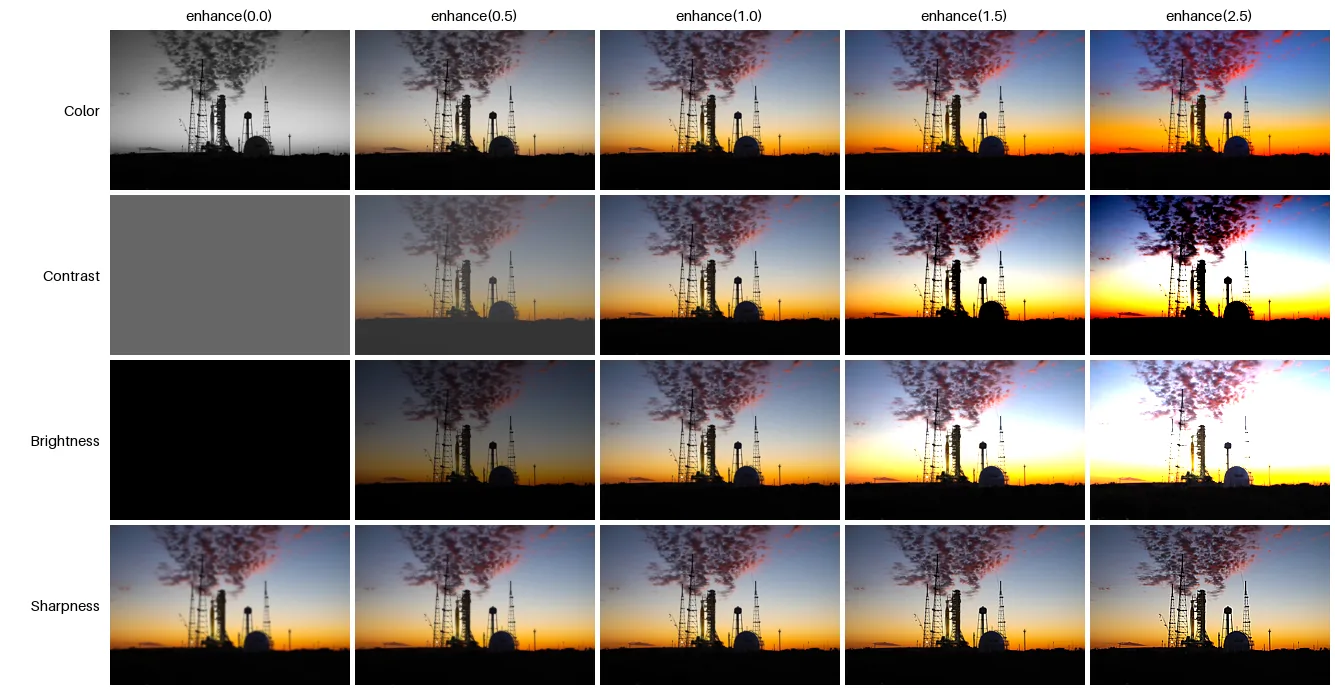
from PIL import Image, ImageDraw, ImageEnhance

src = Image.open("photo.jpg").resize((240, 160))
enhancers = ["Color", "Contrast", "Brightness", "Sharpness"]
factors = [0.0, 0.5, 1.0, 1.5, 2.5]

sheet = Image.new("RGB", (110 + len(factors) * 245, 30 + len(enhancers) * 165), "white")
draw = ImageDraw.Draw(sheet)
for j, f in enumerate(factors):
    draw.text((110 + j * 245 + 120, 15), f"enhance({f})", fill="black", anchor="mm", font_size=15)
for i, name in enumerate(enhancers):
    draw.text((100, 30 + i * 165 + 80), name, fill="black", anchor="rm", font_size=15)
    enhancer = getattr(ImageEnhance, name)(src)
    for j, f in enumerate(factors):
        sheet.paste(enhancer.enhance(f), (110 + j * 245, 30 + i * 165))
sheet.save("enhance.png")| Class | Factor 0 gives | Typical range |
|---|---|---|
Brightness | a black image | 0.7–1.4 |
Contrast | flat grey at the image's mean brightness | 0.8–1.5 |
Color | greyscale | 0–1.8 (0 is an easy greyscale that stays RGB) |
Sharpness | a blurred image | 0–2; for real sharpening use UnsharpMask |
What a brightness factor does to the numbers
Brightness multiplies every channel by the factor and clips at 255. So the mean rises in a straight line at first, then bends as more and more pixels hit the ceiling and lose all detail:
from PIL import Image, ImageEnhance, ImageStat

img = Image.open("photo.jpg")
enh = ImageEnhance.Brightness(img)
for f in [0.0, 0.25, 0.5, 0.75, 1.0, 1.25, 1.5, 1.75, 2.0, 2.5, 3.0]:
    grey = enh.enhance(f).convert("L")
    mean = ImageStat.Stat(grey).mean[0]
    clipped = grey.histogram()[255] / (grey.width * grey.height) * 100
print(f"factor {f:4.2f} mean {mean:6.1f} pure white {clipped:5.1f}%")factor 0.00 mean 0.0 pure white 0.0%
factor 0.25 mean 25.1 pure white 0.0%
factor 0.50 mean 50.7 pure white 0.0%
factor 0.75 mean 76.1 pure white 0.0%
factor 1.00 mean 102.0 pure white 0.0%
factor 1.25 mean 125.0 pure white 0.4%
factor 1.50 mean 141.9 pure white 11.7%
factor 1.75 mean 153.2 pure white 21.0%
factor 2.00 mean 162.0 pure white 28.1%
factor 2.50 mean 173.7 pure white 39.2%
factor 3.00 mean 180.9 pure white 48.2%Show the numbers
| enhance() factor | Mean brightness |
|---|---|
| 0 | 0.0 |
| 0.25 | 25.1 |
| 0.5 | 50.7 |
| 0.75 | 76.1 |
| 1 | 102.0 |
| 1.25 | 125.0 |
| 1.5 | 141.9 |
| 1.75 | 153.2 |
| 2 | 162.0 |
| 2.5 | 173.7 |
| 3 | 180.9 |
If you need a brighter image without blowing out the sky, brighten less and raise contrast a little, or use a curve with
img.point() that eases off near white, e.g. img.point(lambda v: round(255 * (v / 255) ** 0.8))
(a gamma curve that lifts shadows and mid-tones but never clips).
Comparing and combining images (difference, blend modes, masks) is on the ImageChops reference.
Which modes each enhancer accepts
from PIL import Image, ImageEnhance

photo, logo = Image.open("photo.jpg"), Image.open("logo.png")
print(f"{'mode':<6}{'Brightness':<18}{'Contrast':<18}{'Color':<18}{'Sharpness'}")
for mode in ["RGB", "L", "RGBA", "LA", "CMYK", "P", "1", "I;16", "F"]:
    if mode in ("RGBA", "LA"):
        im = logo.convert(mode)
    elif mode == "I;16":
        im = photo.convert("I").convert("I;16")
    else:
        im = photo.convert(mode)
    row = []
    for name in ["Brightness", "Contrast", "Color", "Sharpness"]:
        try:
            out = getattr(ImageEnhance, name)(im).enhance(1.5)
            kept = "A" not in im.getbands() or out.getchannel("A").tobytes() == im.getchannel("A").tobytes()
            row.append("ok" + ("" if "A" not in im.getbands() else ", alpha kept" if kept else ", alpha lost"))
        except ValueError:
            row.append("ValueError")
print(f"{mode:<6}" + "".join(f"{r:<18}" for r in row).rstrip())mode Brightness Contrast Color Sharpness
RGB ok ok ok ok
L ok ok ok ok
RGBA ok, alpha kept ok, alpha kept ok, alpha kept ok, alpha kept
LA ok, alpha kept ok, alpha kept ok, alpha kept ok, alpha kept
CMYK ok ok ok ok
P ValueError ValueError ValueError ValueError
1 ValueError ValueError ValueError ValueError
I;16 ValueError ValueError ValueError ValueError
F ValueError ValueError ValueError ValueErrorAll four keep the alpha channel unchanged, so they are safe on transparent PNGs. Palette, 1-bit, 16-bit and float images
raise ValueError: convert palette and 1-bit images to RGB or L first, and scale 16-bit
data down (see image modes).
Measure brightness and contrast: ImageStat
from PIL import Image, ImageStat

for name in ["photo.jpg", "portrait.jpg"]:
    img = Image.open(name)
    st = ImageStat.Stat(img)
    r, g, b = (round(v) for v in st.mean)
    luma = ImageStat.Stat(img.convert("L"))
print(f"{name:<13} mean RGB ({r}, {g}, {b}) brightness {luma.mean[0]:5.1f}/255 contrast (stddev) {luma.stddev[0]:4.1f}")photo.jpg mean RGB (111, 99, 92) brightness 102.0/255 contrast (stddev) 72.5
portrait.jpg mean RGB (25, 65, 101) brightness 57.2/255 contrast (stddev) 39.2The mean of the greyscale version is a simple brightness score and its standard deviation a simple contrast score, useful for flagging under-exposed photos in a batch before you decide which factor to apply. Every statistic, and a mask to measure part of the image:
from PIL import Image, ImageDraw, ImageStat

img = Image.open("photo.jpg").convert("L")
st = ImageStat.Stat(img)
for name in ["count", "sum", "sum2", "mean", "median", "rms", "var", "stddev", "extrema"]:
    print(f"{name:<8}", [round(v, 1) if isinstance(v, float) else v for v in getattr(st, name)])

sky = Image.new("L", img.size, 0)                                  # measure only the top third
ImageDraw.Draw(sky).rectangle((0, 0, img.width, img.height // 3), fill=255)
print("sky only, mean:", round(ImageStat.Stat(img, sky).mean[0], 1))count [1707200]
sum [174116205]
sum2 [26735081421]
mean [102.0]
median [105]
rms [125.1]
var [5258.4]
stddev [72.5]
extrema [(0, 255)]
sky only, mean: 95.9Each value is a list with one entry per band. sum2 is the sum of squares, rms the root mean
square, and extrema the (min, max) pairs. Statistics are computed from the histogram, so the median is the median of
whole levels. Pass a mask (mode L or 1) as the second argument to measure only part of the image.
Per-pixel maths: ImageMath on Pillow 13
from PIL import Image, ImageMath

img = Image.open("photo.jpg").convert("L")

# Safe evaluation: your function receives the images, plus helpers such as convert, min and max, in a dict
darker = ImageMath.lambda_eval(lambda args: args["convert"](args["a"] / 2, "L"), a=img)
print(darker.mode, img.getpixel((690, 600)), "->", darker.getpixel((690, 600)))

# Per-pixel maximum of three bands
r, g, b = Image.open("photo.jpg").split()
brightest = ImageMath.lambda_eval(
    lambda args: args["convert"](args["max"](args["max"](args["r"], args["g"]), args["b"]), "L"),
    r=r, g=g, b=b)
print(brightest.mode, brightest.getpixel((690, 600)))

# The same idea as a string: only for trusted input, never text from users
print(ImageMath.unsafe_eval("convert(a / 2, 'L')", a=img).getpixel((690, 600)))

half = ImageMath.lambda_eval(lambda args: args["a"] * 0.5, a=img)   # int image times a fraction
print("a * 0.5 ->", half.mode, half.getpixel((690, 600))) # Pillow 13: a float imageL 57 -> 28
L 79
28
a * 0.5 -> F 28.5ImageMath.eval() was removed in Pillow 12.0. Use lambda_eval(), or unsafe_eval() with a
string only for trusted input. The last line shows a Pillow 13 change: multiplying an integer image by a fraction now returns a
float (F) image with exact values (57 × 0.5 = 28.5), where Pillow 12 raised TypeError. Wrap the
expression in convert(..., "L") to get an 8-bit image back. For anything bigger, NumPy is usually clearer.
Colour strings: ImageColor
from PIL import ImageColor

for spec in ["red", "rebeccapurple", "#2563eb", "#2563eb80", "rgb(37, 99, 235)", "hsl(210, 80%, 50%)"]:
    print(f"{spec:<20} getrgb -> {ImageColor.getrgb(spec)}")
print("getcolor('#2563eb80', 'RGBA') ->", ImageColor.getcolor("#2563eb80", "RGBA"))
print("getcolor('#2563eb', 'L') ->", ImageColor.getcolor("#2563eb", "L"))red getrgb -> (255, 0, 0)
rebeccapurple getrgb -> (102, 51, 153)
#2563eb getrgb -> (37, 99, 235)
#2563eb80 getrgb -> (37, 99, 235, 128)
rgb(37, 99, 235) getrgb -> (37, 99, 235)
hsl(210, 80%, 50%) getrgb -> (25, 127, 230)
getcolor('#2563eb80', 'RGBA') -> (37, 99, 235, 128)
getcolor('#2563eb', 'L') -> 96Every Pillow function that takes a colour accepts these strings, including 8-digit hex with alpha.
Complete tables for Pillow 13.0.0
Generated from the installed Pillow when this page was built. The build fails if Pillow adds something we have not described.
ImageEnhance 4
| Name and signature | What it does |
|---|---|
Brightness(image) | Scales every pixel: 0 gives black, 1 the original, above 1 brighter (with clipping). Measured |
Color(image) | Saturation: 0 gives greyscale, above 1 more vivid colours. |
Contrast(image) | Distance from the image's mean grey: 0 gives flat grey, above 1 more contrast. |
Sharpness(image) | Blends with a smoothed copy: 0 blurred, 1 original, above 1 sharper. |
ImageStat.Stat attributes 9
| Name and signature | What it does |
|---|---|
count | Number of pixels measured, per band. |
extrema | (min, max) per band. |
mean | Average value per band; for greyscale, a simple brightness score. |
median | Median value per band (a whole level, computed from the histogram). |
rms | Root mean square per band. |
stddev | Standard deviation per band; a simple contrast score. |
sum | Sum of all values per band. |
sum2 | Sum of squared values per band. |
var | Variance per band. |
ImageMath 9
| Name and signature | What it does |
|---|---|
imagemath_convert(mode) | Inside an expression: convert(image, mode) converts the result, e.g. back to "L". |
imagemath_equal(other) | Inside an expression: equal(a, b) gives 1 where pixels are equal, else 0. |
imagemath_float() | Inside an expression: float(image) converts to a 32-bit float image. |
imagemath_int() | Inside an expression: int(image) converts to a 32-bit integer image. |
imagemath_max(other) | Inside an expression: max(a, b), the per-pixel maximum. |
imagemath_min(other) | Inside an expression: min(a, b), the per-pixel minimum. |
imagemath_notequal(other) | Inside an expression: notequal(a, b) gives 1 where pixels differ. |
lambda_eval(expression, **kw) | Evaluates a Python function on images passed as keywords; the safe way to do per-pixel maths. Example |
unsafe_eval(expression, **kw) | Evaluates a string expression; only for trusted input, never text from users. |
ImageColor 2
| Name and signature | What it does |
|---|---|
getcolor(color, mode) | Converts a colour string to a value for a given mode, e.g. a grey level for L. Example |
getrgb(color) | Converts a colour string (name, hex, rgb(), hsl(), hsv()) to an RGB or RGBA tuple. |
Sources
What this page shows comes from running its code with Pillow 13.0.0. The API details and version history were checked against these primary sources:
- Pillow documentation: ImageEnhance
- Pillow documentation: ImageStat
- Pillow documentation: ImageMath
- Pillow documentation: ImageColor
Related
The outputs and images on this page are the real results of running every example with Pillow 13.0.0 on Python 3.13 (Linux) on 2026-10-29. Every example is also re-run automatically on macOS (Darwin 25.6.0, Pillow 12.3.0), Linux (Linux 6.17.0-1022-azure, Pillow 12.3.0), Windows (Windows 2025Server, Pillow 12.3.0); the line under each example shows the result per operating system. The DejaVu Sans font files sit next to each script so font examples behave the same everywhere. Sample photos: NASA/Sam Lott, public domain. Spotted something wrong? Tell us.