Two images are pixel-identical when ImageChops.difference(a, b).getbbox() is None; otherwise
that box is where they differ. Check the sizes yourself first: different sizes do not raise, the result silently covers only
the overlap. Different modes raise ValueError: images do not match. Convert RGBA to RGB before comparing
colours, and use a tolerance for JPEGs, which never match exactly after re-saving.
Are two images identical?
from PIL import Image, ImageChops

a = Image.open("photo.jpg")
b = a.copy()
b.paste((255, 0, 0), (700, 500, 720, 520))                      # change a 20x20 square

diff = ImageChops.difference(a, b)
print("identical?", diff.getbbox() is None)
print("changed region:", diff.getbbox())

resaved = Image.open("photo.jpg")
resaved.save("again.jpg", quality=92)
diff2 = ImageChops.difference(a, Image.open("again.jpg"))
print("re-saved JPEG identical?", diff2.getbbox() is None, " largest channel difference:", max(hi for lo, hi in diff2.getextrema()))identical? False
changed region: (700, 500, 720, 520)
re-saved JPEG identical? False largest channel difference: 27Compare a.size == b.size before trusting the answer (see the rules below).
getbbox() returns the smallest box containing every non-black pixel, so on a difference image it is
None for identical images and otherwise the changed area. A JPEG saved again is not identical even at the same
quality: every save re-quantises the pixels. Comparing files byte for byte is stricter still, since metadata or a different encoder
changes the bytes without changing a pixel.
How different? A percentage and a tolerance
from PIL import Image, ImageChops, ImageStat

a = Image.open("photo.jpg").convert("RGB")
b = a.copy()
b.paste((255, 0, 0), (700, 500, 720, 520))                      # a 20x20 red square
a.save("again.jpg", quality=70)
c = Image.open("again.jpg").convert("RGB")                       # the same photo, JPEG-compressed again


def compare(x, y, tolerance=16):
    diff = ImageChops.difference(x, y).convert("L")              # per pixel: largest change becomes brightness
    changed = diff.point(lambda v: 255 if v > tolerance else 0)  # ignore small changes (compression noise)
    share = ImageStat.Stat(changed).mean[0] / 255
    rms = ImageStat.Stat(ImageChops.difference(x, y)).rms
    return f"{share:7.3%} of pixels changed   RMS difference {sum(rms) / 3:5.2f}   box {changed.getbbox()}"


print("red square:  ", compare(a, b))
print("re-saved q70:", compare(a, c))
print("re-saved q70, tolerance 0:", compare(a, c, tolerance=0).split(" ")[0].strip())red square: 0.023% of pixels changed RMS difference 2.10 box (700, 500, 720, 520)
re-saved q70: 0.235% of pixels changed RMS difference 2.89 box (454, 294, 1394, 839)
re-saved q70, tolerance 0: 74.255% of pixels changedTwo numbers answer different questions. The share of changed pixels, counted above a tolerance, says how much
of the picture changed and ignores compression noise: the red square is 0.023% of the photo, and a JPEG re-saved at quality 70
changes 74% of its pixels by at least one level but only 0.2% by more than 16. The RMS difference says how strongly pixels changed on
average, including the noise. For near-duplicate detection across resized or recompressed copies, compare small greyscale
thumbnails or use a perceptual hash (the imagehash package), not exact pixels.
Highlight what changed
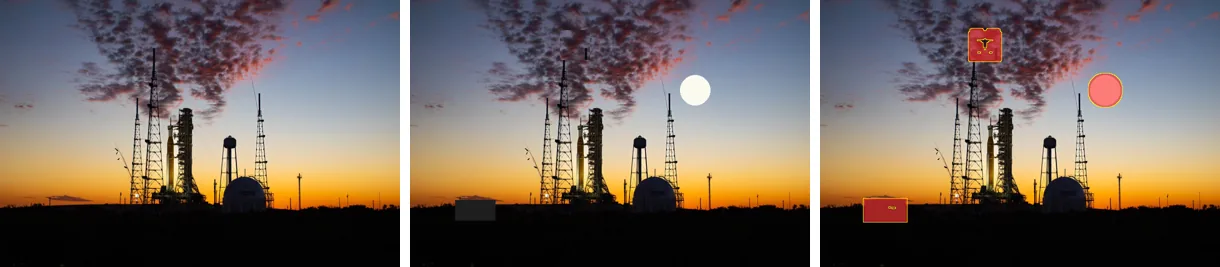
difference(), tinted and outlined.from PIL import Image, ImageChops, ImageDraw, ImageFilter
before = Image.open("photo.jpg").convert("RGB").resize((800, 534))
after = before.copy()
d = ImageDraw.Draw(after)
d.ellipse((540, 150, 600, 210), fill=(250, 250, 240)) # three changes to find
d.rectangle((90, 400, 170, 440), fill=(30, 30, 30))
after.paste(after.crop((300, 60, 360, 120)).transpose(Image.Transpose.FLIP_LEFT_RIGHT), (300, 60))
diff = ImageChops.difference(before, after).convert("L")
mask = diff.point(lambda v: 255 if v > 24 else 0).filter(ImageFilter.MaxFilter(9)) # grow the changed pixels a little
red = Image.new("RGB", after.size, (255, 40, 40))
marked = Image.composite(red, after, mask.point(lambda v: v * 0.6)) # paint changes red at 60%
outline = mask.filter(ImageFilter.FIND_EDGES)
marked.paste((255, 255, 0), mask=outline) # and outline them
sheet = Image.new("RGB", (3 * 400 + 20, 267), "white")
for i, im in enumerate([before, after, marked]):
sheet.paste(im.resize((400, 267)), (i * 410, 0))
sheet.save("highlight.png")
print("changed areas:", mask.getbbox())changed areas: (86, 56, 605, 445)The threshold turns the difference into a mask, MaxFilter grows it so single pixels become visible areas, and
Image.composite() paints through it. For visual regression tests, save this marked image next to the failing
screenshot.
Trim a border or whitespace
from PIL import Image, ImageChops, ImageOps

photo = Image.open("photo.jpg").convert("RGB").resize((400, 267))
framed = ImageOps.expand(photo, border=(60, 30, 20, 45), fill="white")    # uneven white margins
framed.save("scan.jpg", quality=80)                                       # JPEG adds noise to the "white"
scan = Image.open("scan.jpg")


def trim(img, fuzz=30):
    bg = Image.new(img.mode, img.size, img.getpixel((0, 0)))              # the border colour, from the corner
    diff = ImageChops.difference(img, bg)
    diff = ImageChops.add(diff, diff, 2.0, -fuzz)                         # (d + d) / 2 - fuzz: drop near-white noise
    box = diff.getbbox()
    return img.crop(box) if box else img


print("scan:", scan.size, "-> trimmed:", trim(scan).size, "| photo was", photo.size)
print("without fuzz:", ImageChops.difference(scan, Image.new("RGB", scan.size, scan.getpixel((0, 0)))).getbbox())scan: (480, 342) -> trimmed: (401, 267) | photo was (400, 267)
without fuzz: (47, 15, 465, 304)This is the common “auto-crop” recipe: compare the image with a flat image of its corner colour and crop to the
bounding box of whatever differs. The add(diff, diff, 2.0, -fuzz) line subtracts fuzz from every
difference, which matters on scans and JPEGs: without it the faint noise in the margin counts as content and nothing is trimmed,
as the last line shows (the box is the whole image). Raise fuzz for noisier scans, lower it for borders close to the
content colour.
Blend modes, side by side
The same photo combined with a black-to-white gradient, so each panel shows what a mode does from a black top layer (left) to a white one (right):
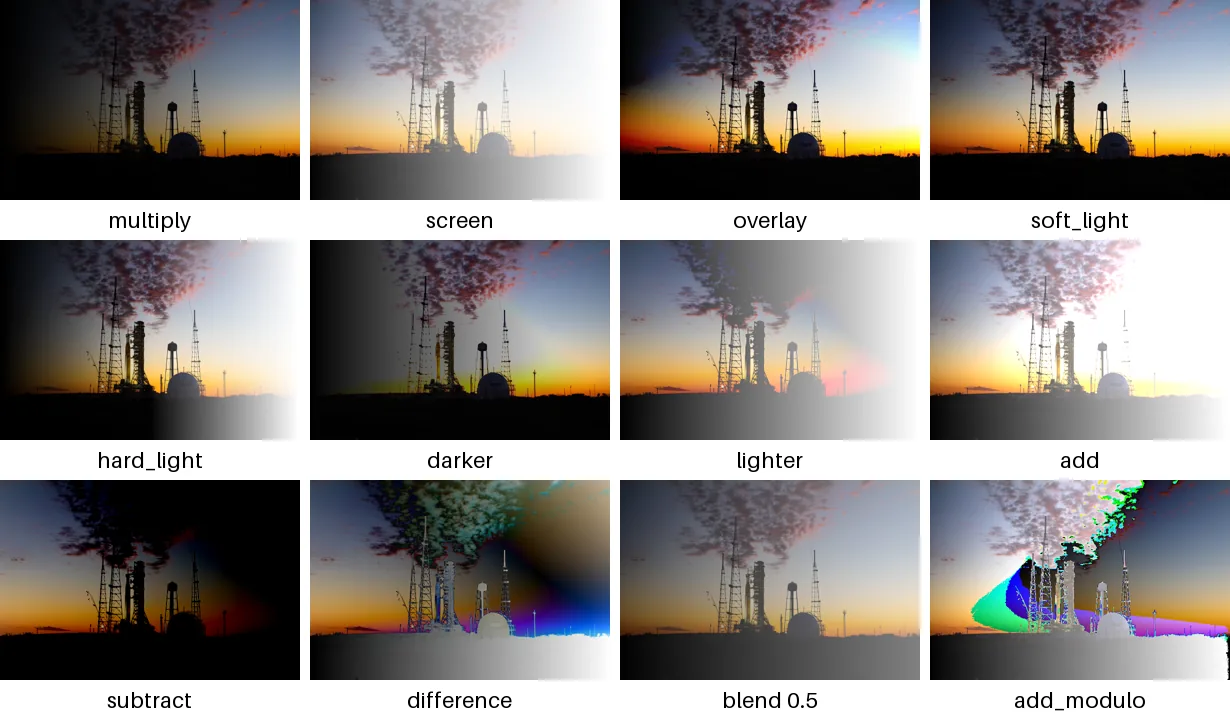
from PIL import Image, ImageChops

base = Image.open("photo.jpg").convert("RGB").resize((600, 400))
ramp = Image.linear_gradient("L").rotate(90).resize((600, 400)).convert("RGB")   # black on the left, white on the right
ops = [
    ("multiply", ImageChops.multiply), ("screen", ImageChops.screen), ("overlay", ImageChops.overlay),
    ("soft_light", ImageChops.soft_light), ("hard_light", ImageChops.hard_light), ("darker", ImageChops.darker),
    ("lighter", ImageChops.lighter), ("add", ImageChops.add), ("subtract", ImageChops.subtract),
    ("difference", ImageChops.difference), ("blend 0.5", lambda a, b: ImageChops.blend(a, b, 0.5)),
    ("add_modulo", ImageChops.add_modulo),
]
from PIL import ImageDraw, ImageFont
font = ImageFont.load_default(size=22)
sheet = Image.new("RGB", (4 * 310 - 10, 3 * 240), "white")
for i, (name, fn) in enumerate(ops):
    x, y = (i % 4) * 310, (i // 4) * 240
    sheet.paste(fn(base, ramp).resize((300, 200)), (x, y))
    ImageDraw.Draw(sheet).text((x + 150, y + 220), name, font=font, fill="black", anchor="mm")
sheet.save("blend_modes.png")Recorded by the build from ImageChops on Pillow 13.
Show the numbers
| Top layer value | multiply | screen | overlay | soft light |
|---|---|---|---|---|
| 0 | 0 | 100 | 0 | 39 |
| 1 | 0 | 101 | 0 | 39 |
| 2 | 0 | 102 | 1 | 40 |
| 3 | 1 | 102 | 2 | 40 |
| 4 | 1 | 103 | 3 | 40 |
| 5 | 1 | 104 | 3 | 41 |
| 6 | 2 | 104 | 4 | 41 |
| 7 | 2 | 105 | 5 | 42 |
| 8 | 3 | 105 | 6 | 42 |
| 9 | 3 | 106 | 7 | 43 |
| 10 | 3 | 107 | 7 | 43 |
| 11 | 4 | 107 | 8 | 43 |
| 12 | 4 | 108 | 9 | 44 |
| 13 | 5 | 108 | 10 | 45 |
| 14 | 5 | 109 | 11 | 45 |
| 15 | 5 | 110 | 11 | 46 |
| 16 | 6 | 110 | 12 | 46 |
| 17 | 6 | 111 | 13 | 47 |
| 18 | 7 | 111 | 14 | 47 |
| 19 | 7 | 112 | 14 | 47 |
| 20 | 7 | 113 | 15 | 48 |
| 21 | 8 | 113 | 16 | 48 |
| 22 | 8 | 114 | 17 | 49 |
| 23 | 9 | 114 | 18 | 49 |
| 24 | 9 | 115 | 18 | 50 |
| 25 | 9 | 116 | 19 | 50 |
| 26 | 10 | 116 | 20 | 51 |
| 27 | 10 | 117 | 21 | 51 |
| 28 | 10 | 118 | 22 | 52 |
| 29 | 11 | 118 | 22 | 52 |
| 30 | 11 | 119 | 23 | 53 |
| 31 | 12 | 119 | 24 | 53 |
| 32 | 12 | 120 | 25 | 54 |
| 33 | 12 | 121 | 25 | 54 |
| 34 | 13 | 121 | 26 | 55 |
| 35 | 13 | 122 | 27 | 55 |
| 36 | 14 | 122 | 28 | 55 |
| 37 | 14 | 123 | 29 | 56 |
| 38 | 14 | 124 | 29 | 56 |
| 39 | 15 | 124 | 30 | 57 |
| 40 | 15 | 125 | 31 | 58 |
| 41 | 16 | 125 | 32 | 58 |
| 42 | 16 | 126 | 33 | 58 |
| 43 | 16 | 127 | 33 | 59 |
| 44 | 17 | 127 | 34 | 59 |
| 45 | 17 | 128 | 35 | 60 |
| 46 | 18 | 128 | 36 | 60 |
| 47 | 18 | 129 | 37 | 61 |
| 48 | 18 | 130 | 37 | 61 |
| 49 | 19 | 130 | 38 | 61 |
| 50 | 19 | 131 | 39 | 62 |
| 51 | 20 | 131 | 40 | 63 |
| 52 | 20 | 132 | 40 | 63 |
| 53 | 20 | 133 | 41 | 64 |
| 54 | 21 | 133 | 42 | 64 |
| 55 | 21 | 134 | 43 | 65 |
| 56 | 21 | 135 | 44 | 65 |
| 57 | 22 | 135 | 44 | 65 |
| 58 | 22 | 136 | 45 | 66 |
| 59 | 23 | 136 | 46 | 66 |
| 60 | 23 | 137 | 47 | 67 |
| 61 | 23 | 138 | 48 | 68 |
| 62 | 24 | 138 | 48 | 68 |
| 63 | 24 | 139 | 49 | 68 |
| 64 | 25 | 139 | 50 | 69 |
| 65 | 25 | 140 | 51 | 69 |
| 66 | 25 | 141 | 51 | 70 |
| 67 | 26 | 141 | 52 | 70 |
| 68 | 26 | 142 | 53 | 71 |
| 69 | 27 | 142 | 54 | 71 |
| 70 | 27 | 143 | 55 | 72 |
| 71 | 27 | 144 | 55 | 72 |
| 72 | 28 | 144 | 56 | 73 |
| 73 | 28 | 145 | 57 | 73 |
| 74 | 29 | 145 | 58 | 73 |
| 75 | 29 | 146 | 59 | 74 |
| 76 | 29 | 147 | 59 | 74 |
| 77 | 30 | 147 | 60 | 75 |
| 78 | 30 | 148 | 61 | 76 |
| 79 | 30 | 149 | 62 | 76 |
| 80 | 31 | 149 | 62 | 76 |
| 81 | 31 | 150 | 63 | 77 |
| 82 | 32 | 150 | 64 | 77 |
| 83 | 32 | 151 | 65 | 78 |
| 84 | 32 | 152 | 66 | 78 |
| 85 | 33 | 152 | 66 | 79 |
| 86 | 33 | 153 | 67 | 80 |
| 87 | 34 | 153 | 68 | 80 |
| 88 | 34 | 154 | 69 | 80 |
| 89 | 34 | 155 | 70 | 81 |
| 90 | 35 | 155 | 70 | 81 |
| 91 | 35 | 156 | 71 | 82 |
| 92 | 36 | 156 | 72 | 82 |
| 93 | 36 | 157 | 73 | 82 |
| 94 | 36 | 158 | 74 | 83 |
| 95 | 37 | 158 | 74 | 83 |
| 96 | 37 | 159 | 75 | 84 |
| 97 | 38 | 159 | 76 | 84 |
| 98 | 38 | 160 | 77 | 85 |
| 99 | 38 | 161 | 77 | 86 |
| 100 | 39 | 161 | 78 | 86 |
| 101 | 39 | 162 | 79 | 86 |
| 102 | 40 | 162 | 80 | 87 |
| 103 | 40 | 163 | 81 | 87 |
| 104 | 40 | 164 | 81 | 88 |
| 105 | 41 | 164 | 82 | 88 |
| 106 | 41 | 165 | 83 | 89 |
| 107 | 41 | 166 | 84 | 90 |
| 108 | 42 | 166 | 85 | 90 |
| 109 | 42 | 167 | 85 | 90 |
| 110 | 43 | 167 | 86 | 91 |
| 111 | 43 | 168 | 87 | 91 |
| 112 | 43 | 169 | 88 | 92 |
| 113 | 44 | 169 | 88 | 92 |
| 114 | 44 | 170 | 89 | 92 |
| 115 | 45 | 170 | 90 | 93 |
| 116 | 45 | 171 | 91 | 94 |
| 117 | 45 | 172 | 92 | 94 |
| 118 | 46 | 172 | 92 | 94 |
| 119 | 46 | 173 | 93 | 95 |
| 120 | 47 | 173 | 94 | 95 |
| 121 | 47 | 174 | 95 | 96 |
| 122 | 47 | 175 | 96 | 96 |
| 123 | 48 | 175 | 96 | 97 |
| 124 | 48 | 176 | 97 | 98 |
| 125 | 49 | 176 | 98 | 98 |
| 126 | 49 | 177 | 99 | 98 |
| 127 | 49 | 178 | 100 | 99 |
| 128 | 50 | 178 | 100 | 99 |
| 129 | 50 | 179 | 101 | 100 |
| 130 | 50 | 180 | 102 | 100 |
| 131 | 51 | 180 | 103 | 100 |
| 132 | 51 | 181 | 103 | 101 |
| 133 | 52 | 181 | 104 | 101 |
| 134 | 52 | 182 | 105 | 102 |
| 135 | 52 | 183 | 106 | 102 |
| 136 | 53 | 183 | 107 | 103 |
| 137 | 53 | 184 | 107 | 104 |
| 138 | 54 | 184 | 108 | 104 |
| 139 | 54 | 185 | 109 | 104 |
| 140 | 54 | 186 | 110 | 105 |
| 141 | 55 | 186 | 111 | 105 |
| 142 | 55 | 187 | 111 | 106 |
| 143 | 56 | 187 | 112 | 106 |
| 144 | 56 | 188 | 113 | 107 |
| 145 | 56 | 189 | 114 | 108 |
| 146 | 57 | 189 | 114 | 108 |
| 147 | 57 | 190 | 115 | 108 |
| 148 | 58 | 190 | 116 | 109 |
| 149 | 58 | 191 | 117 | 109 |
| 150 | 58 | 192 | 118 | 110 |
| 151 | 59 | 192 | 118 | 110 |
| 152 | 59 | 193 | 119 | 110 |
| 153 | 60 | 193 | 120 | 111 |
| 154 | 60 | 194 | 121 | 112 |
| 155 | 60 | 195 | 122 | 112 |
| 156 | 61 | 195 | 122 | 112 |
| 157 | 61 | 196 | 123 | 113 |
| 158 | 61 | 197 | 124 | 114 |
| 159 | 62 | 197 | 125 | 114 |
| 160 | 62 | 198 | 125 | 114 |
| 161 | 63 | 198 | 126 | 115 |
| 162 | 63 | 199 | 127 | 116 |
| 163 | 63 | 200 | 128 | 116 |
| 164 | 64 | 200 | 129 | 116 |
| 165 | 64 | 201 | 129 | 117 |
| 166 | 65 | 201 | 130 | 117 |
| 167 | 65 | 202 | 131 | 118 |
| 168 | 65 | 203 | 132 | 118 |
| 169 | 66 | 203 | 133 | 118 |
| 170 | 66 | 204 | 133 | 120 |
| 171 | 67 | 204 | 134 | 120 |
| 172 | 67 | 205 | 135 | 120 |
| 173 | 67 | 206 | 136 | 120 |
| 174 | 68 | 206 | 137 | 121 |
| 175 | 68 | 207 | 137 | 122 |
| 176 | 69 | 207 | 138 | 122 |
| 177 | 69 | 208 | 139 | 122 |
| 178 | 69 | 209 | 140 | 123 |
| 179 | 70 | 209 | 140 | 123 |
| 180 | 70 | 210 | 141 | 124 |
| 181 | 70 | 211 | 142 | 124 |
| 182 | 71 | 211 | 143 | 125 |
| 183 | 71 | 212 | 144 | 126 |
| 184 | 72 | 212 | 144 | 126 |
| 185 | 72 | 213 | 145 | 126 |
| 186 | 72 | 214 | 146 | 126 |
| 187 | 73 | 214 | 147 | 127 |
| 188 | 73 | 215 | 148 | 128 |
| 189 | 74 | 215 | 148 | 128 |
| 190 | 74 | 216 | 149 | 128 |
| 191 | 74 | 217 | 150 | 130 |
| 192 | 75 | 217 | 151 | 130 |
| 193 | 75 | 218 | 151 | 130 |
| 194 | 76 | 218 | 152 | 130 |
| 195 | 76 | 219 | 153 | 131 |
| 196 | 76 | 220 | 154 | 132 |
| 197 | 77 | 220 | 155 | 132 |
| 198 | 77 | 221 | 155 | 132 |
| 199 | 78 | 221 | 156 | 133 |
| 200 | 78 | 222 | 157 | 134 |
| 201 | 78 | 223 | 158 | 134 |
| 202 | 79 | 223 | 159 | 134 |
| 203 | 79 | 224 | 159 | 135 |
| 204 | 80 | 224 | 160 | 135 |
| 205 | 80 | 225 | 161 | 136 |
| 206 | 80 | 226 | 162 | 136 |
| 207 | 81 | 226 | 162 | 136 |
| 208 | 81 | 227 | 163 | 138 |
| 209 | 81 | 228 | 164 | 138 |
| 210 | 82 | 228 | 165 | 138 |
| 211 | 82 | 229 | 166 | 138 |
| 212 | 83 | 229 | 166 | 139 |
| 213 | 83 | 230 | 167 | 140 |
| 214 | 83 | 231 | 168 | 140 |
| 215 | 84 | 231 | 169 | 140 |
| 216 | 84 | 232 | 170 | 141 |
| 217 | 85 | 232 | 170 | 141 |
| 218 | 85 | 233 | 171 | 142 |
| 219 | 85 | 234 | 172 | 142 |
| 220 | 86 | 234 | 173 | 143 |
| 221 | 86 | 235 | 174 | 144 |
| 222 | 87 | 235 | 174 | 144 |
| 223 | 87 | 236 | 175 | 144 |
| 224 | 87 | 237 | 176 | 144 |
| 225 | 88 | 237 | 177 | 145 |
| 226 | 88 | 238 | 177 | 146 |
| 227 | 89 | 238 | 178 | 146 |
| 228 | 89 | 239 | 179 | 146 |
| 229 | 89 | 240 | 180 | 148 |
| 230 | 90 | 240 | 181 | 148 |
| 231 | 90 | 241 | 181 | 148 |
| 232 | 90 | 242 | 182 | 148 |
| 233 | 91 | 242 | 183 | 149 |
| 234 | 91 | 243 | 184 | 150 |
| 235 | 92 | 243 | 185 | 150 |
| 236 | 92 | 244 | 185 | 150 |
| 237 | 92 | 245 | 186 | 152 |
| 238 | 93 | 245 | 187 | 152 |
| 239 | 93 | 246 | 188 | 152 |
| 240 | 94 | 246 | 188 | 152 |
| 241 | 94 | 247 | 189 | 152 |
| 242 | 94 | 248 | 190 | 154 |
| 243 | 95 | 248 | 191 | 154 |
| 244 | 95 | 249 | 192 | 154 |
| 245 | 96 | 249 | 192 | 154 |
| 246 | 96 | 250 | 193 | 156 |
| 247 | 96 | 251 | 194 | 156 |
| 248 | 97 | 251 | 195 | 156 |
| 249 | 97 | 252 | 196 | 156 |
| 250 | 98 | 252 | 196 | 157 |
| 251 | 98 | 253 | 197 | 158 |
| 252 | 98 | 254 | 198 | 158 |
| 253 | 99 | 254 | 199 | 158 |
| 254 | 99 | 255 | 200 | 160 |
| 255 | 100 | 255 | 200 | 160 |
import json
from PIL import Image, ImageChops

base = Image.new("L", (256, 1), 100)                     # a mid-dark pixel...
layer = Image.linear_gradient("L").rotate(90).resize((256, 1))   # ...against every top-layer value 0-255
curves = {name: list(getattr(ImageChops, name)(base, layer).get_flattened_data())
          for name in ["multiply", "screen", "overlay", "soft_light"]}
print(json.dumps(curves))The formulas, verified
Each function computed on one pixel pair (100 and 200) and checked against its formula:
from PIL import Image, ImageChops

A, B = 100, 200                                          # one pixel value in each image


def px(v):
    return Image.new("L", (1, 1), v)


def run(fn, *args):
    return fn(px(A), px(B), *args).getpixel((0, 0))


checks = [
    ("add",             run(ImageChops.add),               min(255, A + B)),
    ("add scale=2",     run(ImageChops.add, 2.0),          (A + B) // 2),
    ("add_modulo",      run(ImageChops.add_modulo),        (A + B) % 256),
    ("subtract",        ImageChops.subtract(px(A), px(B)).getpixel((0, 0)), max(0, A - B)),
    ("subtract_modulo", ImageChops.subtract_modulo(px(A), px(B)).getpixel((0, 0)), (A - B) % 256),
    ("difference",      run(ImageChops.difference),        abs(A - B)),
    ("multiply",        run(ImageChops.multiply),          A * B // 255),
    ("screen",          run(ImageChops.screen),            255 - (255 - A) * (255 - B) // 255),
    ("darker",          run(ImageChops.darker),            min(A, B)),
    ("lighter",         run(ImageChops.lighter),           max(A, B)),
    ("blend 0.25",      run(ImageChops.blend, 0.25),       round(A * 0.75 + B * 0.25)),
]
print(f"{'function':<16}{'Pillow':>7}{'formula':>9}")
for name, got, want in checks:
print(f"{name:<16}{got:>7}{want:>9}{'' if abs(got - want) <= 1 else ' <- differs'}")function Pillow formula
add 255 255
add scale=2 150 150
add_modulo 44 44
subtract 0 0
subtract_modulo 156 156
difference 100 100
multiply 78 78
screen 222 222
darker 100 100
lighter 200 200
blend 0.25 125 125The plain functions clip to 0–255; the _modulo variants wrap around, which is almost never what you want
for photos (bright plus bright becomes dark) but is exactly right for counters stored in pixels. add and
subtract also take scale and offset: add(a, b, 2.0) is the average of two
images, and subtract(a, b, 1, 128) shows a signed difference with grey as zero.
Size and mode rules, and ValueError: images do not match
from PIL import Image, ImageChops

photo = Image.open("photo.jpg")
small = photo.resize((800, 533))
print("different sizes, no error:", photo.size, "vs", small.size, "->", ImageChops.difference(photo, small).size)
for a, b, label in [
    (photo.convert("RGB"), photo.convert("L"), "RGB and L"),
    (photo.convert("RGB"), photo.convert("RGBA"), "RGB and RGBA"),
]:
    try:
        ImageChops.difference(a, b)
    except ValueError as e:
        print(f"{label:<16} ValueError: {e}")

print(f"{'mode':<6}{'difference':<14}{'multiply':<14}{'logical_and':<14}{'invert':<9}{'offset'}")
for mode in ["L", "RGB", "RGBA", "CMYK", "P", "1", "I", "I;16", "F"]:
    im = photo.convert("I").convert("I;16") if mode == "I;16" else photo.convert(mode)
    row = []
    for fn in [ImageChops.difference, ImageChops.multiply, ImageChops.logical_and,
               ImageChops.invert, lambda x: ImageChops.offset(x, 10)]:
        try:
            fn(im) if fn in (ImageChops.invert,) or fn.__name__ == "<lambda>" else fn(im, im)
            row.append("ok")
        except ValueError:
            row.append("ValueError")
print(f"{mode:<6}{row[0]:<14}{row[1]:<14}{row[2]:<14}{row[3]:<9}{row[4]}")different sizes, no error: (1600, 1067) vs (800, 533) -> (800, 533)
RGB and L ValueError: images do not match
RGB and RGBA ValueError: images do not match
mode difference multiply logical_and invert offset
L ok ok ValueError ok ok
RGB ok ok ValueError ok ok
RGBA ok ok ValueError ok ok
CMYK ok ok ValueError ok ok
P ok ok ValueError ok ok
1 ok ok ok ok ok
I ValueError ValueError ValueError ok ok
I;16 ValueError ValueError ValueError ok ok
F ValueError ValueError ValueError ok ok- Same mode, always: convert both, usually to
RGB. - Same size is not checked. The result has the size of the overlap (the smaller width and height, from the
top-left corner), so a comparison of a photo with its thumbnail compares the wrong pixels without any error. Check
a.size == b.size, or resize one to match. - 8-bit modes only for the arithmetic and blend functions.
I,I;16andFraiseValueError: image has wrong mode; use ImageMath or NumPy for those. logical_and,logical_or,logical_xorneed mode1. Convert masks withmask.convert("1"), or threshold first withpoint().
Two silent traps: RGBA and palette images
from PIL import Image, ImageChops

a = Image.open("logo.png").convert("RGBA")
b = a.copy()
b.paste((255, 0, 0, 255), (100, 100, 140, 140))
d = ImageChops.difference(a, b)
print("RGBA difference, alpha where nothing changed:", d.getpixel((300, 180))[3], "(0 = invisible)")
rgb = ImageChops.difference(a.convert("RGB"), b.convert("RGB"))
print("compare RGB instead, then check alpha on its own:", rgb.getbbox(),
      ImageChops.difference(a.getchannel("A"), b.getchannel("A")).getbbox())

p1 = Image.open("photo.jpg").quantize(64)
p2 = p1.remap_palette(list(range(63, -1, -1)))          # same colours, palette stored in reverse order
print("P images look the same:", p1.convert("RGB").tobytes() == p2.convert("RGB").tobytes(),
"| ImageChops sees a difference:", ImageChops.difference(p1, p2).getbbox() is not None)RGBA difference, alpha where nothing changed: 0 (0 = invisible)
compare RGB instead, then check alpha on its own: (100, 100, 140, 140) (100, 100, 140, 140)
P images look the same: True | ImageChops sees a difference: TrueOn RGBA images difference() also subtracts the alpha channels, so wherever both images are opaque the result has
alpha 0 and displays as fully transparent, which looks like “the difference image is empty”. Compare the colour channels
as RGB and the alpha channel on its own. Palette (P) images are accepted without complaint, but the function works on
palette indexes, so two images that look the same can “differ” everywhere. Convert them to RGB first.
offset(): wrap an image around
from PIL import Image, ImageChops

tile = Image.open("photo.jpg").convert("RGB").crop((0, 0, 256, 256))
shifted = ImageChops.offset(tile, 128, 128)              # wraps around: the edges now meet in the middle
shifted.save("seam_check.png")
print("pixel (0, 0) moved to (128, 128):", tile.getpixel((0, 0)) == shifted.getpixel((128, 128)))
print("wrap: pixel (200, 200) is now at", ((200 + 128) % 256, (200 + 128) % 256))

deep = tile.convert("I").point(lambda v: v * 257).convert("I;16")      # 16-bit greyscale
out = ImageChops.offset(deep, 10, 0)
print("16-bit offset keeps values:", deep.getpixel((0, 0)) == out.getpixel((10, 0)), out.mode)pixel (0, 0) moved to (128, 128): True
wrap: pixel (200, 200) is now at (72, 72)
16-bit offset keeps values: True I;16Shifting by half the size brings the four edges together in the middle, which is the standard way to check and fix the seams of
a texture that should tile. Before Pillow 13, offset() produced wrong results on 16-bit images; it is also much faster
in 13.
Speed
import time
from PIL import Image, ImageChops

a = Image.open("photo.jpg").convert("RGB")               # 1600 x 1067
b = a.transpose(Image.Transpose.FLIP_LEFT_RIGHT)


def best(fn):
    runs = []
    for _ in range(7):
        t = time.perf_counter(); fn(); runs.append((time.perf_counter() - t) * 1000)
    return min(runs)


for name, fn in [
    ("difference", lambda: ImageChops.difference(a, b)),
    ("multiply", lambda: ImageChops.multiply(a, b)),
    ("screen", lambda: ImageChops.screen(a, b)),
    ("overlay", lambda: ImageChops.overlay(a, b)),
    ("add", lambda: ImageChops.add(a, b)),
    ("blend", lambda: ImageChops.blend(a, b, 0.5)),
    ("offset", lambda: ImageChops.offset(a, 300, 200)),
    ("getbbox of diff", lambda: ImageChops.difference(a, b).getbbox()),
]:
print(f"{name:<16}{best(fn):7.2f} ms")difference 0.79 ms
multiply 6.22 ms
screen 7.32 ms
overlay 9.95 ms
add 4.09 ms
blend 2.14 ms
offset 0.55 ms
getbbox of diff 0.85 msEvery function runs in C on whole images, so a full-photo comparison costs a few milliseconds. Comparing thousands of images is
limited by decoding the files, not by ImageChops; decode at reduced size with draft() or
thumbnail() if exact pixels do not matter.
All ImageChops functions
Generated from Pillow 13.0.0, so the list and signatures are complete for that version.
ImageChops 21
| Name and signature | What it does |
|---|---|
add(image1, image2, scale=1.0, offset=0) | (a + b) / scale + offset, clipped to 0–255. With scale=2.0 it averages two images. |
add_modulo(image1, image2) | (a + b) % 256: wraps around instead of clipping, so bright plus bright becomes dark. |
blend(image1, image2, alpha) | a × (1 − alpha) + b × alpha; the same as Image.blend(). |
composite(image1, image2, mask) | Takes each pixel from image1 where mask is white and from image2 where it is black; the same as Image.composite(). |
constant(image, value) | A new L image of the same size, filled with value. |
darker(image1, image2) | The smaller of the two values per channel (“darken” blend). |
difference(image1, image2) | |a − b| per channel. All black means identical; getbbox() of it is the changed area. |
duplicate(image) | A copy of the image; the same as image.copy(). |
hard_light(image1, image2) | Overlay with the roles swapped: the top image decides whether to multiply or screen. |
invert(image) | 255 − value; the same as ImageOps.invert() for 8-bit images (inverting colours). |
lighter(image1, image2) | The larger of the two values per channel (“lighten” blend). |
logical_and(image1, image2) | Bitwise AND of two mode 1 images: white only where both are white. |
logical_or(image1, image2) | Bitwise OR of two mode 1 images: white where either is white. |
logical_xor(image1, image2) | Bitwise XOR of two mode 1 images: white where exactly one is white. |
multiply(image1, image2) | a × b / 255: always darker; white leaves the other image unchanged. |
offset(image, xoffset, yoffset=None) | Shifts the image by (x, y) and wraps the edges around. Fixed for 16-bit images and much faster in Pillow 13. |
overlay(image1, image2) | Multiplies dark areas and screens light areas of the base image: more contrast. |
screen(image1, image2) | 255 − (255 − a)(255 − b) / 255: always lighter; black leaves the other image unchanged. |
soft_light(image1, image2) | A gentler overlay: lightens or darkens slightly depending on the top layer. |
subtract(image1, image2, scale=1.0, offset=0) | (a − b) / scale + offset, clipped to 0–255. |
subtract_modulo(image1, image2) | (a − b) % 256: wraps around below zero. |
Sources
What this page shows comes from running its code with Pillow 13.0.0. The API details and version history were checked against these primary sources:
Related
The outputs and images on this page are the real results of running every example with Pillow 13.0.0 on Python 3.13 (Linux) on 2026-10-29. Every example is also re-run automatically on macOS (Darwin 25.6.0, Pillow 12.3.0), Linux (Linux 6.17.0-1022-azure, Pillow 12.3.0), Windows (Windows 2025Server, Pillow 12.3.0); the line under each example shows the result per operating system. The DejaVu Sans font files sit next to each script so font examples behave the same everywhere. Sample photos: NASA/Sam Lott, public domain. Spotted something wrong? Tell us.