background.paste(overlay, (x, y), overlay), where overlay is an RGBA image: passing it a
second time uses its alpha channel as the mask. If the background is RGBA too and may itself be transparent, use
background.alpha_composite(overlay, (x, y)) instead.
Overlay a logo on a photo
from PIL import Image

photo = Image.open("photo.jpg")
logo = Image.open("logo.png")                # RGBA: has an alpha channel
logo.thumbnail((300, 300))

photo.paste(logo, (40, 40), logo)            # third argument: the mask (here, the logo's own alpha)
photo.save("with_logo.jpg")
print(logo.mode, logo.size)RGBA (300, 180)The (x, y) position is the top-left corner of the pasted image. The photo is changed in place;
paste() returns None, so don't write photo = photo.paste(...).
Why the corners turn black
Without the mask argument, paste() copies the pixels as they are, including the fully transparent ones,
whose colour happens to be black:
from PIL import Image

logo = Image.open("logo.png")
logo.thumbnail((300, 300))
bg = Image.open("photo.jpg").crop((900, 0, 1260, 220))      # a patch of sky

without = bg.copy()
without.paste(logo, (30, 20))                # no mask: alpha is ignored, transparent pixels become black
with_mask = bg.copy()
with_mask.paste(logo, (30, 20), logo)

sheet = Image.new("RGB", (730, 220), "white")
sheet.paste(without, (0, 0))
sheet.paste(with_mask, (370, 0))
sheet.save("mask_compare.png")
print("corner without mask:", without.getpixel((32, 22)), " with mask:", with_mask.getpixel((32, 22)))corner without mask: (0, 0, 0) with mask: (86, 83, 110)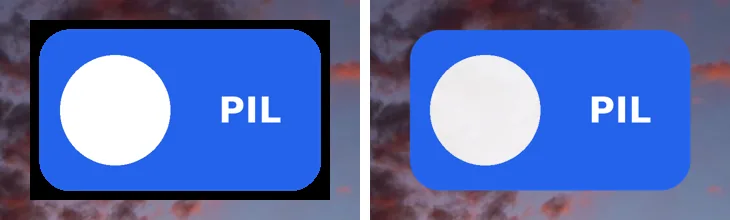
paste(logo, pos). Right: paste(logo, pos, logo).ValueError: bad transparency mask
The mask must be mode 1, L, LA, RGBA or RGBa. An RGB
image has no transparency to use, so it is refused:
from PIL import Image

photo = Image.open("photo.jpg")
logo = Image.open("logo.png").convert("RGB")     # alpha thrown away somewhere earlier
photo.paste(logo, (40, 40), logo)Traceback (most recent call last):
...
ValueError: bad transparency maskUsually the alpha was lost earlier, by a convert("RGB"), by saving to JPEG, or because the file never had
any. Check img.mode right after opening. Palette images (P, from GIFs and small PNGs) cannot be
masks either; convert them to RGBA first:
from PIL import Image

photo = Image.open("photo.jpg")

logo = Image.open("logo.png")
print("logo:", logo.mode, "bands:", logo.getbands())
photo.paste(logo, (40, 40), logo.getchannel("A"))    # explicit: just the alpha band (mode L)

gif = Image.open("spinner.gif")                      # palette image: cannot be a mask itself
print("gif:", gif.mode)
gif = gif.convert("RGBA")                            # converts palette transparency (if any) to alpha
photo.paste(gif, (400, 40), gif)
print("ok")logo: RGBA bands: ('R', 'G', 'B', 'A')
gif: P
okpaste() or alpha_composite()?
On an opaque background (a photo), they give the same result. On a background that is itself transparent, they don't:
from PIL import Image

logo = Image.open("logo.png")                        # the circle is 90% opaque (alpha 230)
canvas = Image.new("RGBA", logo.size, (0, 0, 0, 0))  # fully transparent canvas

pasted = canvas.copy()
pasted.paste(logo, (0, 0), logo)
composited = canvas.copy()
composited.alpha_composite(logo)                     # in-place; Image.alpha_composite(a, b) returns a new image

print("logo pixel:      ", logo.getpixel((170, 180)))
print("paste with mask: ", pasted.getpixel((170, 180)))
print("alpha_composite: ", composited.getpixel((170, 180)))logo pixel: (255, 255, 255, 230)
paste with mask: (230, 230, 230, 207)
alpha_composite: (255, 255, 255, 230)paste() blends every channel with the mask, including alpha, so a 90% opaque pixel pasted onto a
transparent canvas comes out less opaque than it was, and its colour darker. alpha_composite() does proper
"over" compositing. Use it for stickers, layers and anything you will save as PNG with transparency. It needs both images in
RGBA mode.
Watermark with opacity, in the corner
from PIL import Image

photo = Image.open("photo.jpg").convert("RGBA")
mark = Image.open("logo.png")
mark.thumbnail((photo.width // 5, photo.width // 5))     # 20% of the photo's width

opacity = 0.5
alpha = mark.getchannel("A").point(lambda a: round(a * opacity))
mark.putalpha(alpha)

margin = 30
pos = (photo.width - mark.width - margin, photo.height - mark.height - margin)   # bottom-right
photo.alpha_composite(mark, pos)
photo.convert("RGB").save("watermarked.jpg", quality=90)
print("watermark", mark.size, "at", pos)watermark (320, 192) at (1250, 845)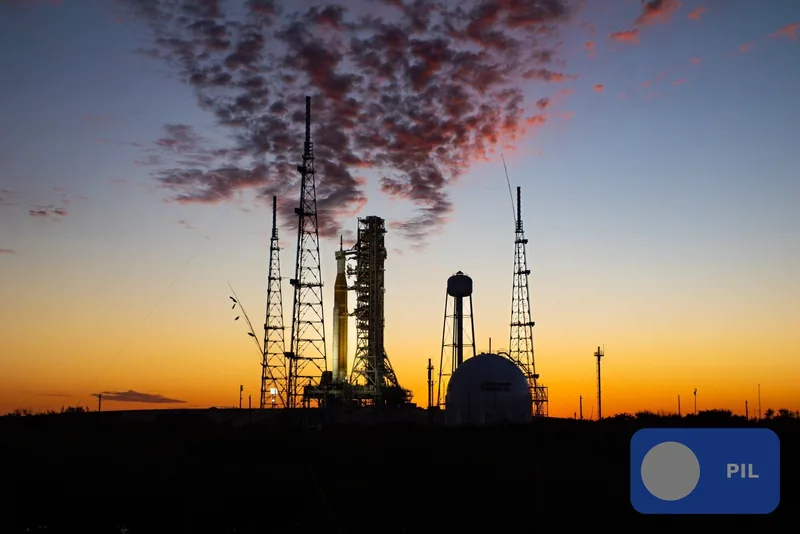
Scaling the existing alpha (rather than setting it to a constant with putalpha(128)) keeps the transparent
corners transparent. The watermark tool generates this code with text or tiled marks.
The other errors you may hit
from PIL import Image

photo = Image.open("photo.jpg")                  # RGB, 1600 x 1067
logo = Image.open("logo.png")                    # RGBA, 600 x 360

tests = {
    "alpha_composite(RGB, RGBA)": lambda: Image.alpha_composite(photo, logo),
    "alpha_composite(sizes differ)": lambda: Image.alpha_composite(photo.convert("RGBA"), logo),
    "paste(mask of wrong size)": lambda: photo.copy().paste(logo, (0, 0), Image.new("L", (10, 10))),
    "blend(sizes differ)": lambda: Image.blend(photo, logo.convert("RGB"), 0.5),
}
for name, fn in tests.items():
    try:
        fn()
        print(f"{name:<31} ok")
    except ValueError as e:
print(f"{name:<31} ValueError: {e}")alpha_composite(RGB, RGBA) ValueError: image has wrong mode
alpha_composite(sizes differ) ValueError: images do not match
paste(mask of wrong size) ValueError: images do not match
blend(sizes differ) ValueError: images do not matchalpha_composite needs two RGBA images of the same size; the method form (a.alpha_composite(b, dest))
lifts the size restriction by taking a position. blend and composite need the same size and mode.
paste accepts any position, but its mask must match the pasted image's size.
Related
The outputs and images on this page are the real results of running every example with Pillow 12.3.0 on Python 3.13 (Linux) on 2026-10-15. Every example is also re-run automatically on macOS (Darwin 25.6.0, Pillow 12.3.0), Linux (Linux 6.17.0-1022-azure, Pillow 12.3.0), Windows (Windows 2025Server, Pillow 12.3.0); the line under each example shows the result per operating system. The DejaVu Sans font files sit next to each script so font examples behave the same everywhere. Sample photos: NASA/Sam Lott, public domain. Spotted something wrong? Tell us.