Pillow ImageOps Module
Independent quick-reference. Canonical source: official ImageOps module documentation.
ImageOps collects one-call helpers for jobs that would otherwise take several lines: fixing phone-photo rotation, fitting images into boxes, adding borders, auto-contrast, greyscale, mirroring and more. Most functions expect L or RGB images and return a new image.
autocontrast()
Stretches the tones so the darkest pixel becomes black and the brightest white. With cutoff=2 it first ignores the darkest and brightest 2% of pixels, so a few specks of pure black or white do not stop the stretch. A quick fix for flat, washed-out scans.
| Parameter | Type | Description |
|---|---|---|
image | Image | Input image (L or RGB). |
cutoff | float | Percent to cut from histogram edges. Default: 0. Can be 2-tuple: (low, high). |
ignore | int | sequence | Background pixel value(s) to ignore during computation. |
mask | Image | None | Mask restricting the histogram calculation region. |
preserve_tone | bool | If True, the RGB channels are individually autocontrasted (added in Pillow 8.2.0). |
colorize()
Colorize a grayscale image by mapping each grayscale level to a colour between two (or three) colour endpoints.
| Parameter | Description |
|---|---|
image | Grayscale (L mode) image. |
black | Colour (name, hex, or tuple) to use for black pixels. |
white | Colour to use for white pixels. |
mid | Optional midpoint colour. Default: None. |
blackpoint | Grayscale level (0-255) that maps to black. Default: 0. |
whitepoint | Grayscale level (0-255) that maps to white. Default: 255. |
midpoint | Grayscale level that maps to mid. Default: 127. |
equalize()
Redistributes tones so every brightness level is used roughly equally. It brings out detail in very low-contrast images (X-rays, foggy photos) but can look harsh on normal photos; try autocontrast() first.
expand()
Add a border to the image. The border parameter controls the width — it can be a single integer (same on all sides) or a 4-tuple (left, top, right, bottom).
fit() and pad()
Both return an image of exactly the size you ask for. fit() crops whatever does not fit the target shape; pad() keeps the whole image and fills the gaps with a colour. See them compared with contain(), cover() and thumbnail() in resizing and keeping the aspect ratio.
| Method | Behaviour |
|---|---|
fit(image, size, method, bleed, centering) | Crops to fill the target size. Preserves aspect ratio. May remove edges. |
pad(image, size, method, color, centering) | Pads with color to reach target size. Never crops. Adds letterbox/pillarbox bars. |
grayscale() and invert()
posterize() and solarize()
posterize() reduces the number of bits per channel. solarize() inverts all values above a threshold (mimics exposing film to light during development).
exif_transpose() — Fix Rotated Photos (EXIF Orientation)
If an image has an Exif Orientation tag, returns a new image that is transposed accordingly. Often the most important function in the module for processing user-uploaded photos from mobile devices.
All ImageOps Functions
| Function | Description |
|---|---|
autocontrast(image, cutoff, ignore, mask, preserve_tone) | Normalize contrast using histogram. |
colorize(image, black, white, mid, blackpoint, whitepoint, midpoint) | Colorize grayscale image. |
crop(image, border) | Remove border pixels from image. |
scale(image, factor, resample=BICUBIC) | Scale image by a factor. 2.0 = double size. |
degenerate(image) | Return a degenerate image, equivalent to a greyscale image viewed in color. |
equalize(image, mask) | Equalize image histogram. |
expand(image, border, fill) | Add border padding. |
fit(image, size, method, bleed, centering) | Crop-scale to target size. |
flip(image) | Flip image top to bottom. |
grayscale(image) | Convert to grayscale (keeps mode). |
invert(image) | Invert (negate) image. |
mirror(image) | Flip left to right. |
pad(image, size, method, color, centering) | Pad image to target size. |
posterize(image, bits) | Reduce colours per channel. |
solarize(image, threshold) | Invert values above threshold. |
exif_transpose(image, in_place=False) | Auto-rotate based on EXIF orientation. |
contain(image, size, method=BICUBIC) | Scale image to fit within size without cropping. |
cover(image, size) | Scale image to cover size entirely (may crop). |
Tested examples
Everything in this section was run with Pillow 12.3.0; the images are the real output. Sample photos: NASA/Sam Lott, public domain.
Common operations side by side
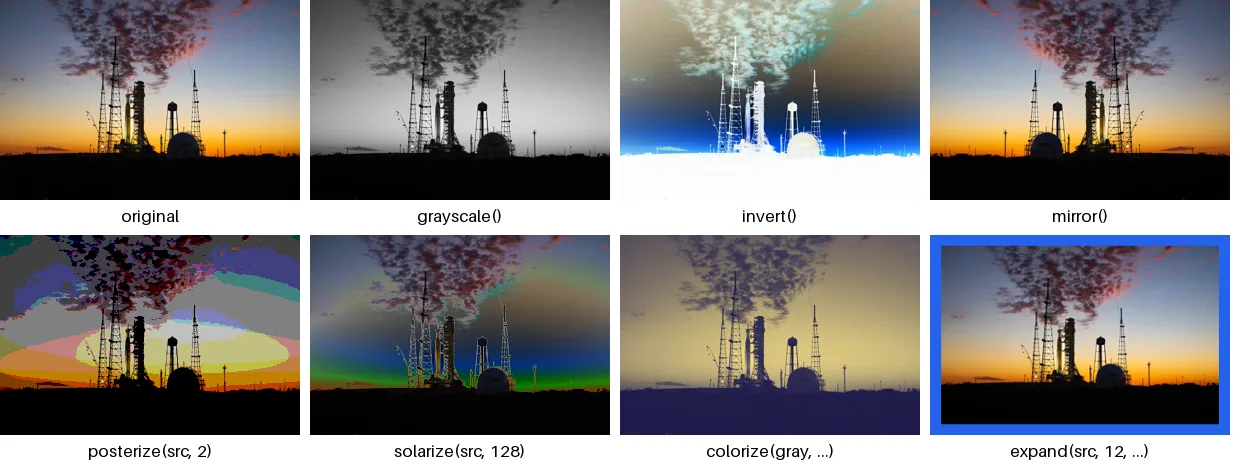
from PIL import Image, ImageDraw, ImageFont, ImageOps

src = Image.open("photo.jpg").resize((300, 200))
ops = {
    "original": src,
    "grayscale()": ImageOps.grayscale(src),
    "invert()": ImageOps.invert(src),
    "mirror()": ImageOps.mirror(src),
    "posterize(src, 2)": ImageOps.posterize(src, 2),
    "solarize(src, 128)": ImageOps.solarize(src, 128),
    "colorize(gray, ...)": ImageOps.colorize(ImageOps.grayscale(src), black="#1e1b4b", white="#fde68a"),
    "expand(src, 12, ...)": ImageOps.expand(src, border=12, fill="#2563eb").resize((300, 200)),
}
font = ImageFont.load_default(size=17)
cols = 4
sheet = Image.new("RGB", (cols * 310, 2 * 235), "white")
for i, (label, im) in enumerate(ops.items()):
    x, y = (i % cols) * 310, (i // cols) * 235
    sheet.paste(im.convert("RGB"), (x, y))
    ImageDraw.Draw(sheet).text((x + 150, y + 215), label, font=font, fill="black", anchor="mm")
sheet.save("imageops.png")autocontrast() vs equalize() on a flat image
from PIL import Image, ImageOps

# Simulate a flat, washed-out scan by squeezing all tones into a narrow band.
flat = Image.open("photo.jpg").convert("L").point(lambda v: 90 + v * 80 // 255)
auto = ImageOps.autocontrast(flat, cutoff=1)
equal = ImageOps.equalize(flat)

for name, im in [("flat", flat), ("autocontrast", auto), ("equalize", equal)]:
    print(f"{name:<13} darkest={im.getextrema()[0]:3}  brightest={im.getextrema()[1]:3}")

sheet = Image.new("L", (3 * 410, 267), 255)
for i, im in enumerate([flat, auto, equal]):
    sheet.paste(im.resize((400, 267)), (i * 410, 0))
sheet.save("contrast.png")flat darkest= 90 brightest=170
autocontrast darkest= 0 brightest=255
equalize darkest= 0 brightest=255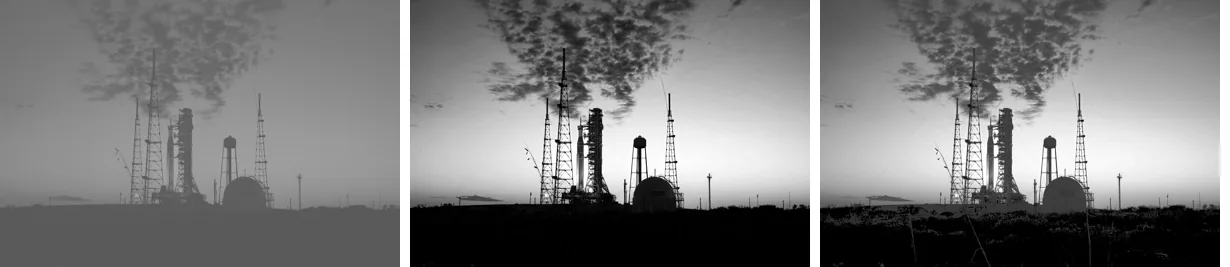
autocontrast(cutoff=1), equalize().autocontrast stretches the existing tones linearly, so the picture keeps its character. equalize
spreads tones evenly, which reveals more detail but can exaggerate noise and banding.
Not every function accepts RGBA
Several ImageOps functions only work on L and RGB:
from PIL import Image, ImageOps

logo = Image.open("logo.png")          # RGBA
ImageOps.invert(logo)OSError: not supported for mode RGBASplit off the alpha channel, process the colour bands, and put the alpha back:
from PIL import Image, ImageOps

logo = Image.open("logo.png")
r, g, b, a = logo.split()
rgb = ImageOps.invert(Image.merge("RGB", (r, g, b)))
inverted = Image.merge("RGBA", (*rgb.split(), a))      # keep the original transparency
print(inverted.mode, inverted.getpixel((300, 180)), "alpha kept:", inverted.getpixel((5, 5))[3] == 0)RGBA (218, 156, 20, 255) alpha kept: TrueRemoving a uniform border
ImageOps.crop(img, border=n) removes a fixed number of pixels. To remove a border of unknown width, compare
against the background colour and crop to the bounding box of what differs:
from PIL import Image, ImageChops

def trim(img, bg_color=None):
    """Remove a uniform border (e.g. white margins around a scan or chart)."""
    bg = Image.new(img.mode, img.size, bg_color or img.getpixel((0, 0)))
    bbox = ImageChops.difference(img, bg).getbbox()
    return img.crop(bbox) if bbox else img

padded = Image.new("RGB", (800, 600), "white")
padded.paste(Image.open("photo.jpg").resize((500, 333)), (120, 90))
print(padded.size, "->", trim(padded).size)(800, 600) -> (500, 333)For fitting images into fixed sizes, see contain, cover, fit and pad compared.