To shrink an image so it fits inside a box, use img.thumbnail((max_w, max_h)). It keeps the aspect ratio,
never enlarges, and changes the image in place. If you need a new image, or want small images enlarged too, use
ImageOps.contain(img, (max_w, max_h)).
The quickest way: thumbnail()
from PIL import Image

img = Image.open("photo.jpg")
print("before:", img.size)

img.thumbnail((800, 800))          # shrinks in place, keeps the aspect ratio
print("after: ", img.size)
img.save("photo_800.jpg", quality=85)before: (1600, 1067)
after: (800, 534)The box is a maximum, not a target: a 1600×1067 photo in an 800×800 box becomes 800×534 (Pillow rounds the 533.5 up). Note that
thumbnail() returns None, so img = img.thumbnail(...) is a bug that leaves you with
None.
Five ways to fit an image into a box, compared
The differences only show when the target box has a different shape from the image. Here a landscape photo goes into a 400×400 square with each method:
from PIL import Image, ImageOps

img = Image.open("photo.jpg")      # 1600 x 1067, landscape
box = (400, 400)                   # a square target

thumb = img.copy()
thumb.thumbnail(box)

results = {
    "thumbnail": thumb,
    "contain": ImageOps.contain(img, box),
    "cover": ImageOps.cover(img, box),
    "fit": ImageOps.fit(img, box),
    "pad": ImageOps.pad(img, box, color="#cbd5e1"),
}
for name, im in results.items():
print(f"{name:<10} {im.size}")thumbnail (400, 267)
contain (400, 267)
cover (600, 400)
fit (400, 400)
pad (400, 400)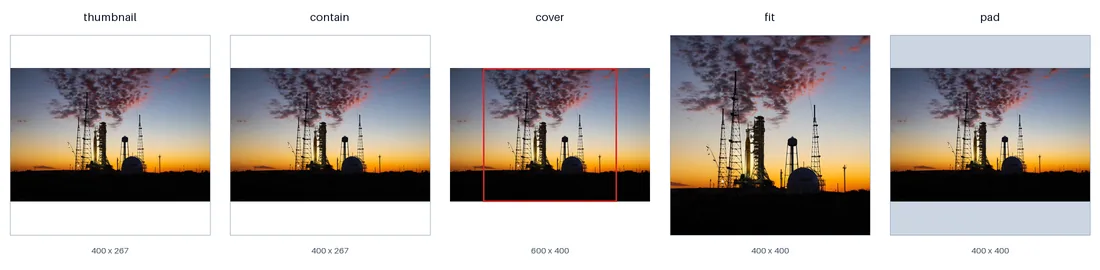
cover, the result is larger than the box, shown scaled down.| Method | Result size | Crops? | Enlarges small images? | Use it for |
|---|---|---|---|---|
img.thumbnail(box) | fits inside the box | no | no | Shrinking uploads, previews. Modifies in place. |
ImageOps.contain(img, box) | fits inside the box | no | yes | Same as thumbnail, but returns a new image and can upscale. |
ImageOps.cover(img, box) | covers the box, one side larger | no | yes | The first step of a custom crop. Added in Pillow 10.1. |
ImageOps.fit(img, box) | exactly the box | yes, centred | yes | Square avatars, grid thumbnails, fixed-size cards. |
ImageOps.pad(img, box, color=...) | exactly the box | no, adds bars | yes | Fixed-size outputs where nothing may be cut off (e.g. product photos). |
fit() and pad() take a centering argument, e.g. centering=(0.5, 0.0) keeps the
top of the image, which is usually what you want for portraits of people.
Resize to a fixed width (or height)
When only one dimension matters, say a 640 px wide blog column, compute the other one. Use round() rather than
int(), which always rounds down and can be a pixel short:
from PIL import Image


def resize_to_width(img, width):
    height = round(img.height * width / img.width)
    return img.resize((width, height), Image.LANCZOS)


def resize_to_height(img, height):
    width = round(img.width * height / img.height)
    return img.resize((width, height), Image.LANCZOS)


landscape = Image.open("photo.jpg")      # 1600 x 1067
portrait = Image.open("portrait.jpg")    # 800 x 1200
print(resize_to_width(landscape, 640).size)
print(resize_to_width(portrait, 640).size)
print(resize_to_height(landscape, 300).size)(640, 427)
(640, 960)
(450, 300)thumbnail() never enlarges; contain() does
from PIL import Image, ImageOps

small = Image.open("photo.jpg").resize((300, 200))

t = small.copy()
t.thumbnail((800, 800))
print("thumbnail:", t.size)                              # never enlarges

print("contain: ", ImageOps.contain(small, (800, 800)).size) # enlarges to fitthumbnail: (300, 200)
contain: (800, 533)Upscaling cannot add detail. If you must enlarge, Image.LANCZOS or Image.BICUBIC give the smoothest
result; for real detail you need an AI upscaler, which is beyond Pillow.
Phone photos come out sideways: fix EXIF orientation first
Phones usually store the pixels in landscape and add an EXIF tag saying "rotate this 90°". Pillow gives you the stored pixels. Resize those and save without the tag, and the photo ends up sideways with its width and height swapped:
from PIL import Image

img = Image.open("phone.jpg")              # shot in portrait on a phone
print("stored size:", img.size)
print("orientation tag:", img.getexif().get(0x0112))

img.thumbnail((400, 400))
img.save("phone_small.jpg")               # EXIF is not copied by default
print("saved size: ", img.size, "(sideways!)")stored size: (1200, 800)
orientation tag: 6
saved size: (400, 267) (sideways!)from PIL import Image, ImageOps
img = Image.open("phone.jpg")
img = ImageOps.exif_transpose(img) # rotate pixels to match the tag
print("upright size:", img.size)
img.thumbnail((400, 400))
img.save("phone_small.jpg")
print("saved size: ", img.size)upright size: (800, 1200)
saved size: (267, 400)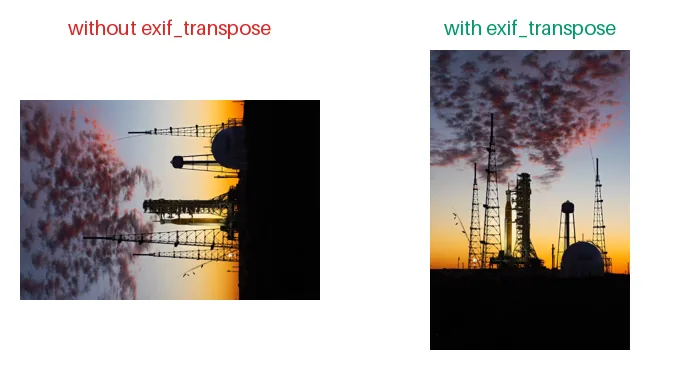
ImageOps.exif_transpose().Call ImageOps.exif_transpose() before any resize or crop on photos from cameras or phones. It returns a copy
with the pixels rotated and the orientation tag removed, so the result looks right everywhere.
Make it fast
For large photos, most of the time goes into decoding the JPEG and filtering every source pixel. We timed three ways of turning a 6000×4000 JPEG into an 800 px thumbnail (best of five runs, Pillow 12.3.0 on a 4-vCPU Linux cloud VM; your numbers will differ, the ratio is what matters):
import time
from PIL import Image

big = Image.open("photo.jpg").resize((6000, 4000))
big.save("big.jpg", quality=90)


def best_of(fn, n=5):
    times = []
    for _ in range(n):
        t = time.perf_counter(); fn(); times.append(time.perf_counter() - t)
    return min(times) * 1000


def plain():
    Image.open("big.jpg").resize((800, 533), Image.LANCZOS)

def gap():
    Image.open("big.jpg").resize((800, 533), Image.LANCZOS, reducing_gap=3.0)

def thumb():
    im = Image.open("big.jpg"); im.thumbnail((800, 800), Image.LANCZOS)

print(f"resize(LANCZOS)                  {best_of(plain):6.0f} ms")
print(f"resize(LANCZOS, reducing_gap=3)  {best_of(gap):6.0f} ms")
print(f"thumbnail(LANCZOS) {best_of(thumb):6.0f} ms")resize(LANCZOS) 382 ms
resize(LANCZOS, reducing_gap=3) 241 ms
thumbnail(LANCZOS) 119 msreducing_gapfirst shrinks the image by an integer factor with a cheap box filter, then applies the real filter to a much smaller image. Values of 2.0 to 3.0 are visually indistinguishable from the full filter.thumbnail()goes further: for JPEGs it asks the decoder to decode at 1/2, 1/4 or 1/8 scale (JPEG "draft" mode), so most pixels are never decoded at all. That is why it is the fastest by far.
Resize a whole folder
A complete script: upright, shrink to fit 1200×1200, keep the file type, compress JPEGs sensibly:
from pathlib import Path
from PIL import Image, ImageOps

SRC = Path("photos")
DST = Path("photos_1200")
MAX_SIZE = (1200, 1200)
DST.mkdir(exist_ok=True)

for path in sorted(SRC.iterdir()):
    if path.suffix.lower() not in {".jpg", ".jpeg", ".png", ".webp"}:
        continue
    with Image.open(path) as img:
        img = ImageOps.exif_transpose(img)
        before = img.size
        img.thumbnail(MAX_SIZE, Image.LANCZOS)
        options = {"quality": 85, "optimize": True} if path.suffix.lower() in {".jpg", ".jpeg"} else {}
        img.save(DST / path.name, **options)
print(f"{path.name:<12} {str(before):<14} -> {img.size}")banner.png (900, 600) -> (900, 600)
img_1.jpg (1600, 1067) -> (1200, 800)
img_2.jpg (1067, 1600) -> (800, 1200)
img_3.jpg (2400, 1350) -> (1200, 675)The PNG keeps its original size because it was already smaller than the limit; thumbnail() leaves small images
alone. To also convert everything to WebP or JPEG in the same pass, see
converting between image formats.
Saving JPEGs with transparency? If a PNG has an alpha channel and you save it as .jpg, you
get OSError: cannot write mode RGBA as JPEG. Flatten it first; the
RGBA to JPEG fixer shows how.
Related
The outputs and images on this page are the real results of running every example with Pillow 12.3.0 on Python 3.13 (Linux) on 2026-10-15. Every example is also re-run automatically on macOS (Darwin 25.6.0, Pillow 12.3.0), Linux (Linux 6.17.0-1022-azure, Pillow 12.3.0), Windows (Windows 2025Server, Pillow 12.3.0); the line under each example shows the result per operating system. The DejaVu Sans font files sit next to each script so font examples behave the same everywhere. Sample photos: NASA/Sam Lott, public domain. Spotted something wrong? Tell us.