ImageOps.invert(img) for RGB, L and 1-bit images. For RGBA, invert the RGB channels and put the alpha back
unchanged (code below). Convert palette (P) and CMYK images to RGB first.
A negative
from PIL import Image, ImageOps

img = Image.open("photo.jpg")
negative = ImageOps.invert(img)
negative.save("negative.jpg")
print(img.getpixel((690, 600)), "->", negative.getpixel((690, 600)))(79, 55, 11) -> (176, 200, 244)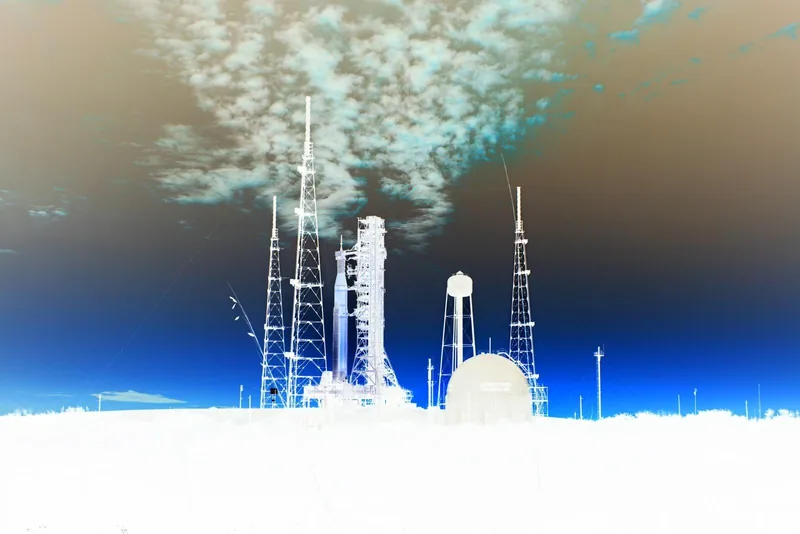
ImageOps.invert() on the sunset photo.Which modes ImageOps.invert accepts
from PIL import Image, ImageOps

photo = Image.open("photo.jpg")
for mode in ["RGB", "L", "1", "RGBA", "LA", "P", "CMYK", "I;16", "F"]:
    img = photo.convert("I").convert("I;16") if mode == "I;16" else photo.convert(mode)
    try:
        ImageOps.invert(img)
        print(f"{mode:<5} ok")
    except (OSError, NotImplementedError) as e:
print(f"{mode:<5} {type(e).__name__}: {e}")RGB ok
L ok
1 ok
RGBA OSError: not supported for mode RGBA
LA OSError: not supported for mode LA
P NotImplementedError: mode P support coming soon
CMYK OSError: not supported for mode CMYK
I;16 OSError: not supported for mode I;16
F OSError: not supported for mode FOnly 8-bit RGB, greyscale and 1-bit images work directly. The two messages people search for most are
not supported for mode RGBA (transparent PNGs) and mode P support coming soon (GIFs and palette
PNGs).
Transparent images (RGBA) without losing the alpha
from PIL import Image, ImageChops, ImageOps

logo = Image.open("logo.png")                       # RGBA, transparent corners

# Invert colour channels only, keep alpha
r, g, b, a = logo.split()
rgb = ImageOps.invert(Image.merge("RGB", (r, g, b)))
inverted = Image.merge("RGBA", (*rgb.split(), a))
inverted.save("logo_inverted.png")

# The tempting alternative inverts the alpha channel too
everything = ImageChops.invert(logo)
print("corner alpha  original:", logo.getpixel((2, 2))[3], " kept:", inverted.getpixel((2, 2))[3],
      " ImageChops.invert:", everything.getpixel((2, 2))[3])
print("centre alpha  original:", logo.getpixel((450, 180))[3], " kept:", inverted.getpixel((450, 180))[3],
" ImageChops.invert:", everything.getpixel((450, 180))[3])corner alpha original: 0 kept: 0 ImageChops.invert: 255
centre alpha original: 255 kept: 255 ImageChops.invert: 0
ImageChops.invert() accepts RGBA without complaint, and that is the trap: it inverts all four channels, so
transparent areas become opaque and opaque areas vanish. Split the channels as above, or
with NumPy: a[..., :3] = 255 - a[..., :3].
Palette, CMYK and 16-bit images
import numpy as np
from PIL import Image, ImageOps

photo = Image.open("photo.jpg")

p = photo.quantize(64)                                         # palette image
print("P    ->", ImageOps.invert(p.convert("RGB")).mode)       # convert, then invert

cmyk = photo.convert("CMYK")
print("CMYK ->", ImageOps.invert(cmyk.convert("RGB")).mode)

a16 = np.asarray(photo.convert("L"), dtype=np.uint16) * 257    # 16-bit greyscale data
inv16 = Image.fromarray(65535 - a16)                           # max is 65535, not 255
print("I;16 ->", inv16.mode, inv16.getextrema())P -> RGB
CMYK -> RGB
I;16 -> I;16 (0, 65535)Inverting a CMYK image's channels does not produce a photographic negative (the black channel behaves differently), so
going through RGB is the right approach anyway. For 16-bit data, subtract from 65535; 255 - a on a
uint16 array silently wraps around.
Inverting a mask
Inverting a greyscale mask swaps which part of an operation applies where, which is handy with composite()
and paste():
from PIL import Image, ImageDraw, ImageOps

photo = Image.open("photo.jpg").resize((400, 267))
mask = Image.new("L", photo.size, 0)
ImageDraw.Draw(mask).ellipse((120, 30, 280, 190), fill=255)    # white = keep

grey = photo.convert("L").convert("RGB")
inside = Image.composite(photo, grey, mask)                    # colour inside the circle
outside = Image.composite(photo, grey, ImageOps.invert(mask))  # colour outside it

sheet = Image.new("RGB", (810, 267), "white")
sheet.paste(inside, (0, 0))
sheet.paste(outside, (410, 0))
sheet.save("mask.jpg")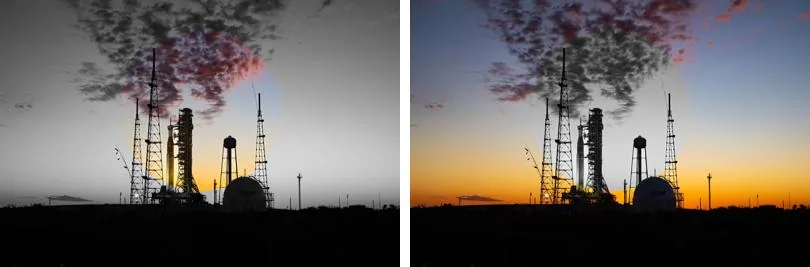
ImageOps.invert(mask).Related
The outputs and images on this page are the real results of running every example with Pillow 12.3.0 on Python 3.13 (Linux) on 2026-10-15. Every example is also re-run automatically on macOS (Darwin 25.6.0, Pillow 12.3.0), Linux (Linux 6.17.0-1022-azure, Pillow 12.3.0), Windows (Windows 2025Server, Pillow 12.3.0); the line under each example shows the result per operating system. The DejaVu Sans font files sit next to each script so font examples behave the same everywhere. Sample photos: NASA/Sam Lott, public domain. Spotted something wrong? Tell us.