Greyscale: img.convert("L"). Pure black and white with a threshold you choose:
img.convert("L").point(lambda v: 255 if v > 128 else 0, mode="1"). Plain convert("1") dithers,
which suits printing but not scanning, OCR or masks.
Greyscale
from PIL import Image

img = Image.open("photo.jpg")
grey = img.convert("L")
grey.save("grey.jpg")

r, g, b = img.getpixel((690, 600))
print("RGB:", (r, g, b), "->  L:", grey.getpixel((690, 600)))
print("by hand:", r * 299 / 1000 + g * 587 / 1000 + b * 114 / 1000)RGB: (79, 55, 11) -> L: 57
by hand: 57.15999999999999Pillow weights the channels by how bright they look to the eye (the ITU-R 601-2 luma formula): green counts most, blue
least. A plain average of R, G and B would make blue skies too light and greens too dark. The result is rounded to the nearest
integer (we checked 200,000 pixels: all match). Mode L has one channel, so getpixel() returns a number, not a tuple.
Pure black and white: dithering vs threshold
from PIL import Image

grey = Image.open("photo.jpg").convert("L")
dithered = grey.convert("1")                                  # default: Floyd-Steinberg dithering
hard = grey.convert("1", dither=Image.Dither.NONE)            # plain threshold at 128

custom = grey.point(lambda v: 255 if v > 60 else 0, mode="1")  # your own threshold

for name, im in [("dithered", dithered), ("threshold 128", hard), ("threshold 60", custom)]:
    print(f"{name:<14} {im.mode}  white: {sum(im.histogram()[255:]) / (im.width * im.height):.0%}")

crop = (520, 380, 920, 780)                                    # zoom on the rocket to show the pixels
sheet = Image.new("L", (3 * 410 - 10, 400), 255)
for i, im in enumerate([dithered, hard, custom]):
    sheet.paste(im.crop(crop).convert("L"), (i * 410, 0))
sheet.save("binary.png")dithered 1 white: 40%
threshold 128 1 white: 41%
threshold 60 1 white: 68%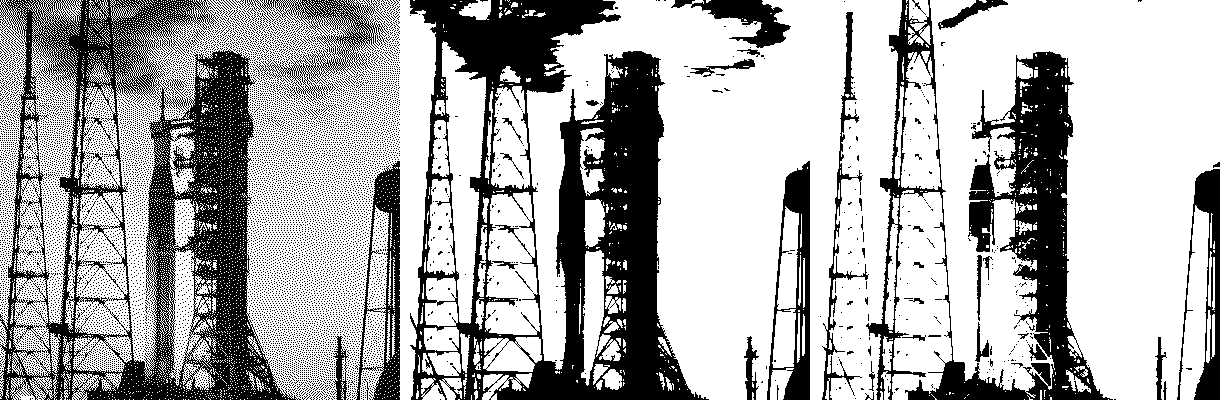
convert("1") (dithered). Middle: dither=NONE. Right: threshold 60.Dithering spreads the rounding error to neighbouring pixels, so the pattern of dots reproduces the grey levels when you
look from a distance. That is what printers and e-ink displays want. For a clean two-tone image (documents, masks, stencils,
OCR input) use a threshold instead. With dither=Image.Dither.NONE the cut-off is fixed at 128. Look at what the
threshold decides: at 128 the rocket is a solid silhouette but darker clouds become black blobs; at 60 the clouds disappear and
so does the sunlit rocket, leaving only the darkest steelwork. Neither is wrong; the right value depends on what you need to
keep, which is why it pays to choose it rather than accept the default.
Pick the threshold automatically (Otsu)
Otsu's method chooses the threshold that best separates the histogram into a dark group and a light group. It needs no library beyond Pillow:
from PIL import Image


def otsu_threshold(grey):
    """Threshold that best separates the histogram into two groups (Otsu's method)."""
    hist = grey.histogram()
    total = sum(hist)
    sum_all = sum(i * h for i, h in enumerate(hist))
    best_t, best_var, w0, sum0 = 0, 0.0, 0, 0
    for t in range(256):
        w0 += hist[t]
        if w0 == 0 or w0 == total:
            continue
        sum0 += t * hist[t]
        m0, m1 = sum0 / w0, (sum_all - sum0) / (total - w0)
        var = w0 * (total - w0) * (m0 - m1) ** 2
        if var > best_var:
            best_t, best_var = t, var
    return best_t


for name in ["photo.jpg", "logo_white.jpg", "portrait.jpg"]:
    grey = Image.open(name).convert("L")
    t = otsu_threshold(grey)
    grey.point(lambda v: 255 if v > t else 0, mode="1").save(name.replace(".jpg", "_bw.png"))
print(f"{name:<15} Otsu threshold = {t}")photo.jpg Otsu threshold = 97
logo_white.jpg Otsu threshold = 175
portrait.jpg Otsu threshold = 75It works well when the image really has two groups of tones, like a document or the logo on white. For unevenly lit
photos and scans, a single global threshold struggles; OpenCV's cv2.adaptiveThreshold computes one per region.
The threshold tool lets you try values interactively.
File size
import io
from PIL import Image

grey = Image.open("photo.jpg").convert("L")
binary = grey.point(lambda v: 255 if v > 60 else 0, mode="1")
for label, im, fmt in [("L as JPEG", grey, "JPEG"), ("L as PNG", grey, "PNG"),
                       ("1 as PNG", binary, "PNG"), ("1 as TIFF (Group 4 fax)", binary, "TIFF")]:
    buf = io.BytesIO()
    im.save(buf, fmt, **({"compression": "group4"} if fmt == "TIFF" else {}))
print(f"{label:<24} {buf.tell() / 1024:7.1f} KB")L as JPEG 98.4 KB
L as PNG 510.4 KB
1 as PNG 20.1 KB
1 as TIFF (Group 4 fax) 11.2 KBA binary image stores one bit per pixel. Save it as PNG, or as TIFF with Group 4 compression for scanned documents. JPEG
cannot store mode 1 efficiently (Pillow converts it to L on save), and its compression artefacts
would add grey pixels to a black-and-white image anyway.
Keep the transparency
from PIL import Image

logo = Image.open("logo.png")                 # RGBA
print(logo.convert("L").mode, logo.convert("L").getpixel((5, 5)))     # transparency lost: corner is now black
grey = logo.convert("LA")                     # greyscale + alpha
print(grey.mode, grey.getpixel((5, 5)))
grey.save("logo_grey.png")L 0
LA (0, 0)convert("L") drops the alpha channel, and transparent areas take on their stored colour (here black). Convert
to LA instead to keep it.
Related
The outputs and images on this page are the real results of running every example with Pillow 12.3.0 on Python 3.13 (Linux) on 2026-10-15. Every example is also re-run automatically on macOS (Darwin 25.6.0, Pillow 12.3.0), Linux (Linux 6.17.0-1022-azure, Pillow 12.3.0), Windows (Windows 2025Server, Pillow 12.3.0); the line under each example shows the result per operating system. The DejaVu Sans font files sit next to each script so font examples behave the same everywhere. Sample photos: NASA/Sam Lott, public domain. Spotted something wrong? Tell us.