img.crop((left, upper, right, lower)), measured in pixels from the top-left corner. Width is
right - left, height is lower - upper. For a centre crop to a size or ratio, use
ImageOps.fit(img, (w, h)).
Crop with a box
from PIL import Image

img = Image.open("photo.jpg")              # 1600 x 1067
box = (560, 400, 880, 840)                 # left, upper, right, lower
rocket = img.crop(box)
print(rocket.size)                         # (right - left, lower - upper)
rocket.save("rocket.jpg")(320, 440)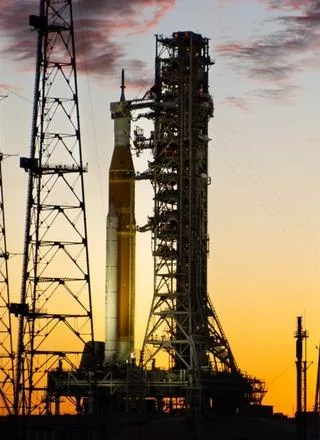
The box rules, tested
from PIL import Image

img = Image.open("photo.jpg")

# right and lower are exclusive: this is exactly 1 x 1 pixel
print(img.crop((0, 0, 1, 1)).size)

# Passing (x, y, width, height) by mistake
x, y, w, h = 560, 400, 320, 440
try:
    img.crop((x, y, w, h))
except ValueError as e:
    print("ValueError:", e)
print("correct:", img.crop((x, y, x + w, y + h)).size)

# Boxes may extend past the edge: no error, the outside is filled with black (zero)
edge = img.crop((1500, 1000, 1700, 1100))
print(edge.size, "corner pixel:", edge.getpixel((199, 99)))(1, 1)
ValueError: Coordinate 'right' is less than 'left'
correct: (320, 440)
(200, 100) corner pixel: (0, 0, 0)- The box is half-open: the pixel at
right/loweris not included, which is why(0, 0, 1, 1)is one pixel and the size is a simple subtraction. - Passing a width and height where Pillow expects right and lower usually produces a box whose right edge is left of its
left edge, and Pillow raises
ValueError. When the numbers happen to be valid, you silently get the wrong region instead, so convert explicitly:(x, y, x + w, y + h). - A box that extends past the image is not an error. The missing area is filled with zeros: black for RGB, and
fully transparent for RGBA. Clamp the box with
min()/max()if you don't want that.
Centre crop, square crop, aspect ratio
from PIL import Image, ImageOps

img = Image.open("photo.jpg")


def centre_crop(img, w, h):
    left = (img.width - w) // 2
    top = (img.height - h) // 2
    return img.crop((left, top, left + w, top + h))


def crop_to_ratio(img, ratio):
    """Largest centred crop with width / height == ratio."""
    if img.width / img.height > ratio:                 # too wide: trim the sides
        return centre_crop(img, round(img.height * ratio), img.height)
    return centre_crop(img, img.width, round(img.width / ratio))   # too tall: trim top and bottom


print("500x500 from the middle:", centre_crop(img, 500, 500).size)
print("square:", crop_to_ratio(img, 1).size)
print("9:16 story:", crop_to_ratio(img, 9 / 16).size)
print("ImageOps.fit, 400x400:", ImageOps.fit(img, (400, 400)).size) # crop to ratio + resize in one call500x500 from the middle: (500, 500)
square: (1067, 1067)
9:16 story: (600, 1067)
ImageOps.fit, 400x400: (400, 400)ImageOps.fit() crops to the target's aspect ratio and then resizes, which is what you want for thumbnails of
a fixed shape. Its centering argument moves the window: (0.5, 0.5) is the middle,
(0, 0) keeps the top-left. Cutting a 3:1 banner out of a tall photo shows why it matters:
from PIL import Image, ImageOps

img = Image.open("portrait.jpg")                    # 800 x 1200, rocket in the lower half
banners = [ImageOps.fit(img, (600, 200), centering=(0.5, y)) for y in (0.0, 0.5, 0.6)]

sheet = Image.new("RGB", (600, 3 * 210 - 10), "white")
for i, banner in enumerate(banners):
    sheet.paste(banner, (0, i * 210))
sheet.save("centering.jpg")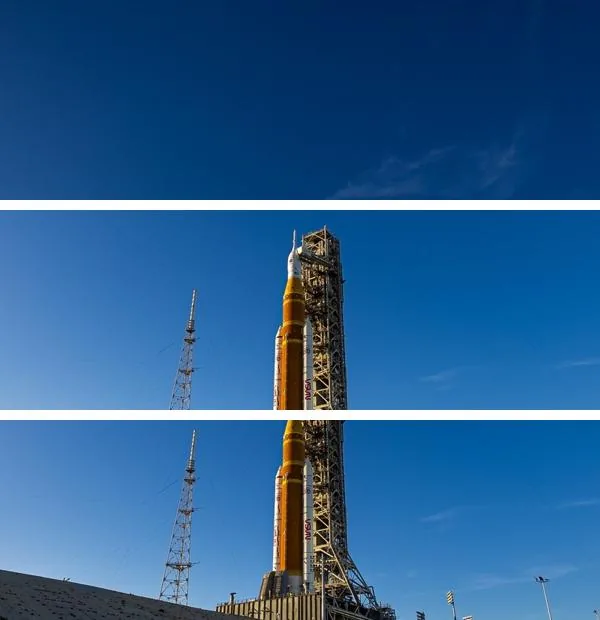
centering=(0.5, 0.0), (0.5, 0.5), (0.5, 0.6).Circular crop (round avatar)
An image is always rectangular, so a "circle crop" is a square crop plus an alpha channel that hides the corners:
from PIL import Image, ImageDraw, ImageOps

img = Image.open("portrait.jpg")
size = 400
square = ImageOps.fit(img, (size, size), centering=(0.5, 0.55))

# Draw the circle 4x larger and shrink it, for a smooth (anti-aliased) edge
mask = Image.new("L", (size * 4, size * 4), 0)
ImageDraw.Draw(mask).ellipse((0, 0, size * 4 - 1, size * 4 - 1), fill=255)
mask = mask.resize((size, size), Image.LANCZOS)

avatar = square.convert("RGBA")
avatar.putalpha(mask)
avatar.save("avatar.png")                  # PNG keeps the transparent corners; JPEG cannot
print(avatar.mode, avatar.size, "corner alpha:", avatar.getpixel((0, 0))[3])RGBA (400, 400) corner alpha: 0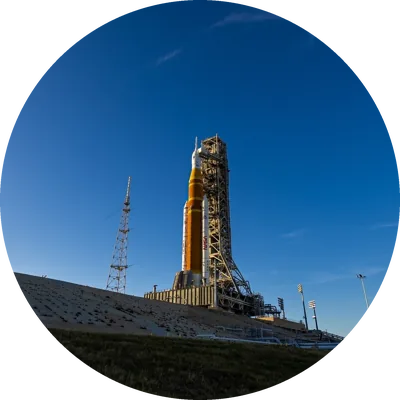
Drawing the mask at 4× and shrinking it gives a smooth edge; a mask drawn at the final size has a visibly jagged outline.
Auto-crop white (or any colour) borders
The tempting one-liner, img.getbbox(), finds the box around all non-zero pixels. That trims black
borders only. For white, compare against a white image first:
from PIL import Image, ImageChops

img = Image.open("logo_white.jpg")                       # logo on a white page, saved as JPEG
print("img.getbbox():", img.getbbox())                   # whole image: getbbox() looks for non-zero, not non-white

white = Image.new(img.mode, img.size, "white")
diff = ImageChops.difference(img, white)
print("non-white area:", diff.getbbox())img.getbbox(): (0, 0, 900, 620)
non-white area: (127, 159, 705, 497)That box is a few pixels too big. The logo really starts at (130, 170), but JPEG compression leaves faint noise around edges, and any non-white pixel counts. A small tolerance fixes it:
from PIL import Image, ImageChops


def trim(img, bg="white", tolerance=20, margin=0):
    """Crop away a solid border, ignoring small differences such as JPEG noise."""
    diff = ImageChops.difference(img.convert("RGB"), Image.new("RGB", img.size, bg)).convert("L")
    box = diff.point(lambda v: 255 if v > tolerance else 0).getbbox()
    if box is None:                                   # the whole image is background
        return img
    l, u, r, b = box
    return img.crop((max(l - margin, 0), max(u - margin, 0), min(r + margin, img.width), min(b + margin, img.height)))


img = Image.open("logo_white.jpg")
for tol in [0, 10, 20]:
    print(f"tolerance {tol:>2}:", trim(img, tolerance=tol).size)
trim(img, margin=12).save("trimmed.png")tolerance 0: (578, 338)
tolerance 10: (566, 327)
tolerance 20: (561, 321)
trim(img, margin=12).With a tolerance of 0 the box includes all of the JPEG noise, and at 10 it is still a few pixels too big. At 20 it is
561×321, exactly the logo's real size. PNG screenshots
usually need no tolerance at all. For a coloured border, pass its colour as bg, for example the value of
img.getpixel((0, 0)).
Related
The outputs and images on this page are the real results of running every example with Pillow 12.3.0 on Python 3.13 (Linux) on 2026-10-15. Every example is also re-run automatically on macOS (Darwin 25.6.0, Pillow 12.3.0), Linux (Linux 6.17.0-1022-azure, Pillow 12.3.0), Windows (Windows 2025Server, Pillow 12.3.0); the line under each example shows the result per operating system. The DejaVu Sans font files sit next to each script so font examples behave the same everywhere. Sample photos: NASA/Sam Lott, public domain. Spotted something wrong? Tell us.