Replace the whole tuple: r, g, b = px[x, y]; px[x, y] = (0, g, b). For whole-image changes, use
img.split()/Image.merge() or a NumPy array made with np.array(img) (not
np.asarray, which is read-only).
What triggers it
from PIL import Image

img = Image.open("photo.jpg")
px = img.load()
for x in range(img.width):
    for y in range(img.height):
px[x, y][0] = 0 # remove the red channelTraceback (most recent call last):
...
TypeError: 'tuple' object does not support item assignmentpx[x, y] returns a copy of the pixel as a tuple such as (58, 56, 70). Even if Python
let you change that tuple, the image would not change, because the tuple is not connected to the image any more.
Fix 1: assign a new tuple
from PIL import Image

img = Image.open("photo.jpg")
px = img.load()
for x in range(img.width):
    for y in range(img.height):
        r, g, b = px[x, y]
        px[x, y] = (0, g, b)         # assign a complete new tuple
print(img.getpixel((690, 600)))(0, 55, 11)Correct, but slow: a Python loop over 1.7 million pixels takes around half a second on our test machine. For single pixels, the same idea works
with getpixel/putpixel:
from PIL import Image

img = Image.open("photo.jpg")
p = img.getpixel((0, 0))
p = (255,) + p[1:]                  # a new tuple: (255, g, b)
img.putpixel((0, 0), p)
print(img.getpixel((0, 0)))(255, 56, 70)Fix 2: work on whole channels (fast)
Changing a channel everywhere is one operation on that channel:
from PIL import Image

img = Image.open("photo.jpg")
r, g, b = img.split()                            # one greyscale image per channel
no_red = Image.merge("RGB", (r.point(lambda v: 0), g, b))
print(no_red.getpixel((690, 600)))
no_red.save("no_red.jpg")(0, 55, 11)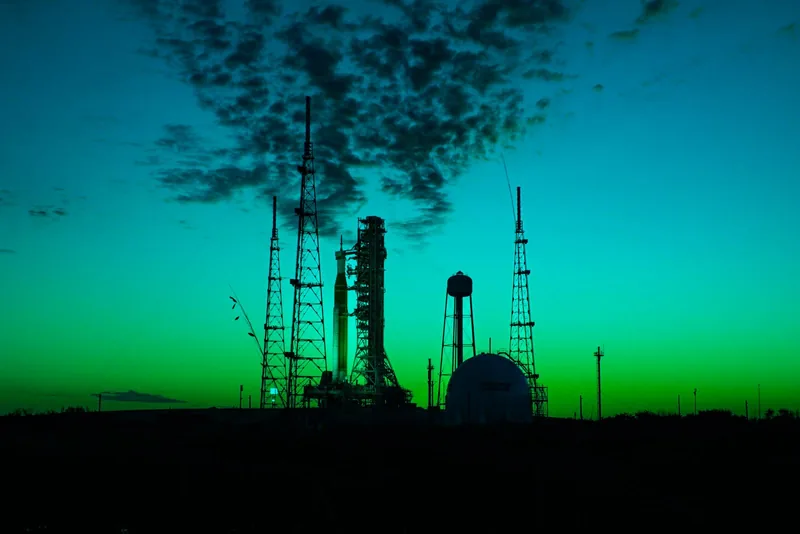
The NumPy version: assignment destination is read-only
Moving to NumPy is the right instinct, but np.asarray(img) gives a read-only view of Pillow's data:
import numpy as np
from PIL import Image

a = np.asarray(Image.open("photo.jpg"))
print("writeable:", a.flags.writeable)
a[:, :, 0] = 0writeable: False
Traceback (most recent call last):
...
ValueError: assignment destination is read-onlyUse np.array(img), which makes a writable copy (or call .copy() on the read-only array):
import numpy as np
from PIL import Image

a = np.array(Image.open("photo.jpg"))           # np.array copies the pixels: writable
print("writeable:", a.flags.writeable)
a[:, :, 0] = 0
print(Image.fromarray(a).getpixel((690, 600)))writeable: True
(0, 55, 11)Do not try to "fix" this with a.setflags(write=True): NumPy refuses for arrays it does not own, and the
data belongs to Pillow anyway. More in Pillow and NumPy.
Same error, different tuple: img.size
img.size is a tuple too, and it is read-only information about the image, not a setting:
from PIL import Image

img = Image.open("photo.jpg")
img.size[0] = 800Traceback (most recent call last):
...
TypeError: 'tuple' object does not support item assignmentTo change the size, create a resized image:
from PIL import Image

img = Image.open("photo.jpg")
w, h = img.size
img = img.resize((800, round(h * 800 / w)))      # resize() returns a new image
print(img.size)(800, 534)The same goes for crop boxes and colours you got from Pillow: turn them into a list (list(box)) if you need
to edit them step by step, then pass a tuple back.
Related
The outputs and images on this page are the real results of running every example with Pillow 12.3.0 on Python 3.13 (Linux) on 2026-10-15. Every example is also re-run automatically on macOS (Darwin 25.6.0, Pillow 12.3.0), Linux (Linux 6.17.0-1022-azure, Pillow 12.3.0), Windows (Windows 2025Server, Pillow 12.3.0); the line under each example shows the result per operating system. The DejaVu Sans font files sit next to each script so font examples behave the same everywhere. Sample photos: NASA/Sam Lott, public domain. Spotted something wrong? Tell us.