- Script on your own computer:
img.show(). - Jupyter, JupyterLab, Colab, VS Code notebooks: put
imgon the last line of the cell, or calldisplay(img). - Plots, or side-by-side comparisons:
plt.imshow(img); addcmap="gray"for greyscale. - A GUI:
ImageTk.PhotoImage(img)in Tkinter, and keep a reference to it.
img.show()
from PIL import Image

img = Image.open("photo.jpg")
img.show()                     # opens the system viewer; returns immediately
show() writes the image to a temporary PNG and hands it to an external program. Which one depends on the platform
and what is installed. On this machine, Pillow knows these viewers:
from PIL import ImageShow

for viewer in ImageShow._viewers:
print(type(viewer).__name__)DisplayViewerOn Windows it uses the default photo app, and on macOS it uses Preview. On Linux it tries the programs above in order. If nothing happens:
- You are on a server, in Docker or over SSH: there is no display. Save the image and open the file instead.
- You are in a notebook:
show()runs on the machine executing the kernel, not in your browser. Usedisplay(img). - On Linux, no viewer is installed. Install one, for example
sudo apt install eog, orxdg-utilsplus any image viewer. - On Windows, the default app for PNG files is missing or broken. Open any PNG by double-clicking to check.
In Jupyter and Colab
from PIL import Image

img = Image.open("photo.jpg")
img.thumbnail((800, 800))
img                            # last line of a cell: rendered inline
# or, anywhere in a cell:
# from IPython.display import display
# display(img)
Notebooks render a PIL image by asking it for a PNG through the _repr_png_ hook (that is all there is to it):
from PIL import Image

img = Image.open("photo.jpg").resize((400, 267))
print(len(img._repr_png_() or b""), "bytes of PNG") # what Jupyter calls to render the image147831 bytes of PNGLarge images are sent to the browser at full size, which makes notebooks slow and heavy. Call thumbnail() on a copy first.
With matplotlib
import matplotlib
matplotlib.use("Agg")                 # file output only; omit in a notebook or desktop session
import matplotlib.pyplot as plt
from PIL import Image

img = Image.open("photo.jpg")
fig, ax = plt.subplots(figsize=(8, 5.4))
ax.imshow(img)                        # PIL images can be passed directly
ax.set_title(f"{img.format} {img.size[0]}x{img.size[1]} {img.mode}")
ax.axis("off")
fig.savefig("shown.png", dpi=100, bbox_inches="tight")
print("saved")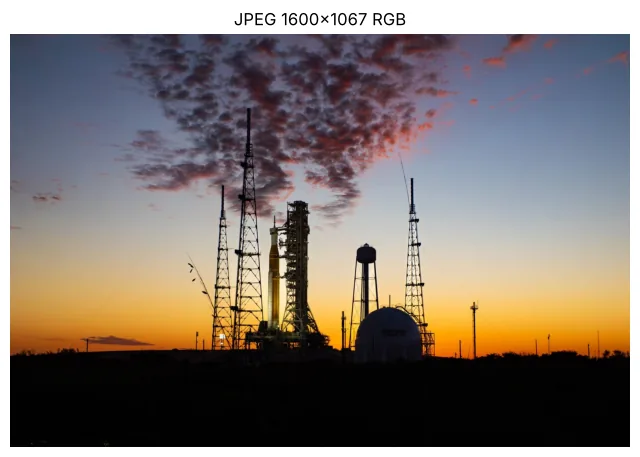
Greyscale images need cmap="gray", or matplotlib applies its default colour map, and vmin/vmax,
or it stretches the contrast:
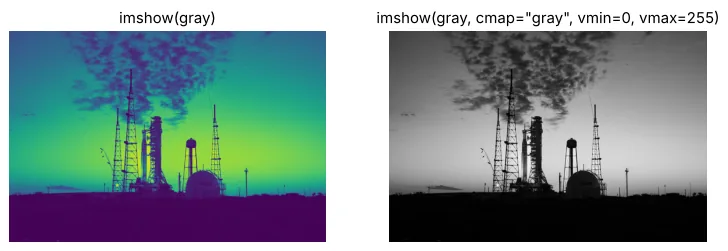
cmap="gray", vmin=0, vmax=255.import matplotlib
matplotlib.use("Agg")
import matplotlib.pyplot as plt
from PIL import Image
gray = Image.open("photo.jpg").convert("L")
fig, axes = plt.subplots(1, 2, figsize=(10, 3.4))
axes[0].imshow(gray) # default colormap: viridis (looks wrong)
axes[0].set_title("imshow(gray)")
axes[1].imshow(gray, cmap="gray", vmin=0, vmax=255)
axes[1].set_title('imshow(gray, cmap="gray", vmin=0, vmax=255)')
for ax in axes:
ax.axis("off")
fig.savefig("gray.png", dpi=90, bbox_inches="tight")If imshow() fails with TypeError: Image data of dtype object cannot be converted to float, it received
something that is not image data, usually None or a file path. See
that error.
In a Tkinter window
import tkinter as tk
from PIL import Image, ImageTk

root = tk.Tk()
img = Image.open("photo.jpg")
img.thumbnail((800, 800))
photo = ImageTk.PhotoImage(img)        # keep a reference, or the image disappears
label = tk.Label(root, image=photo)
label.image = photo                    # this line prevents garbage collection
label.pack()
root.mainloop()
The single most common Tkinter bug is an image that never appears: if nothing keeps a reference to the PhotoImage,
Python garbage-collects it and Tkinter shows an empty label. Store it on the widget, as above. (Tkinter needs a display, so this
snippet was not run in our headless test environment.)
Related
The outputs and images on this page are the real results of running every example with Pillow 12.3.0 on Python 3.13 (Linux) on 2026-10-15. Every example is also re-run automatically on macOS (Darwin 25.6.0, Pillow 12.3.0), Linux (Linux 6.17.0-1022-azure, Pillow 12.3.0), Windows (Windows 2025Server, Pillow 12.3.0); the line under each example shows the result per operating system. The DejaVu Sans font files sit next to each script so font examples behave the same everywhere. Sample photos: NASA/Sam Lott, public domain. Spotted something wrong? Tell us.